Notion Automation for Project Management: Easy Step-by-Step
Learn how to set up a stress-free Notion automation for project management. Streamline workflows, auto-assign tasks, and save hours every week.
 Abir Bin Hasan
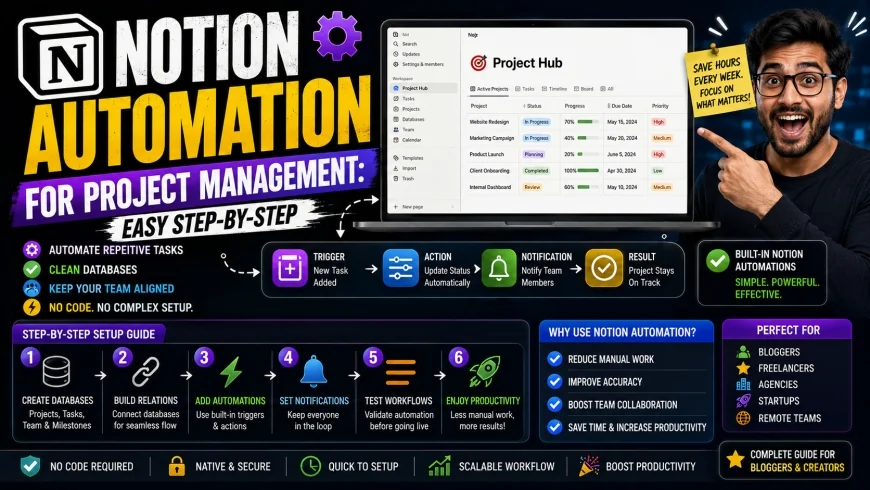
Notion Automation for Project Management: Easy Step-by-Step
Managing complex projects often feels like a constant battle against manual data entry. Setting up a native notion automation for project management allows you to clean up these repetitive tasks, reduce manual database maintenance, and keep your team aligned without having to write custom code or manage external APIs.
Core Considerations
Before diving into complex database setups, it is important to decide if native, built-in triggers are enough or if your team requires advanced, multi-step third-party integrations. This guide covers how to build a reliable, interconnected database structure in Notion using built-in triggers, buttons, and relations to transition away from manual tracking.
Analysis Methodology
This guide is based on an in-depth review of publicly available platform features, official pricing information, commercial-use terms, and practical workflow considerations for professionals. We focus on grounding our analysis in primary sources and real-world application, strictly referencing official guidelines from the Notion Help Center and the Notion Developer Portal.
The Paradigm Shift: Native Notion Automations vs. External Tools
For years, project managers using Notion had to rely on complex middleware like Zapier or Make to perform basic operations. If you wanted to assign a task automatically when its status changed, you had to construct multi-tiered API integrations. However, since Notion introduced its native database automation engine, the workflow design process has fundamentally shifted.
Recent search trends demonstrate that user interest has moved decisively away from "how to connect Zapier to Notion" and toward "how to set up native Notion database triggers." This shift represents an opportunity for teams to reduce setup complexity. Relying entirely on third-party connectors for basic operations introduces unnecessary latency, higher subscription costs, and fragile integration points that break whenever a database property is renamed.
Furthermore, native database triggers run directly on Notion's servers, offering rapid execution. While external tools still hold value for cross-platform synchronization (such as pushing tasks to Slack or Google Calendar), the vast majority of day-to-day project management tasks can now be handled cleanly within the native environment.
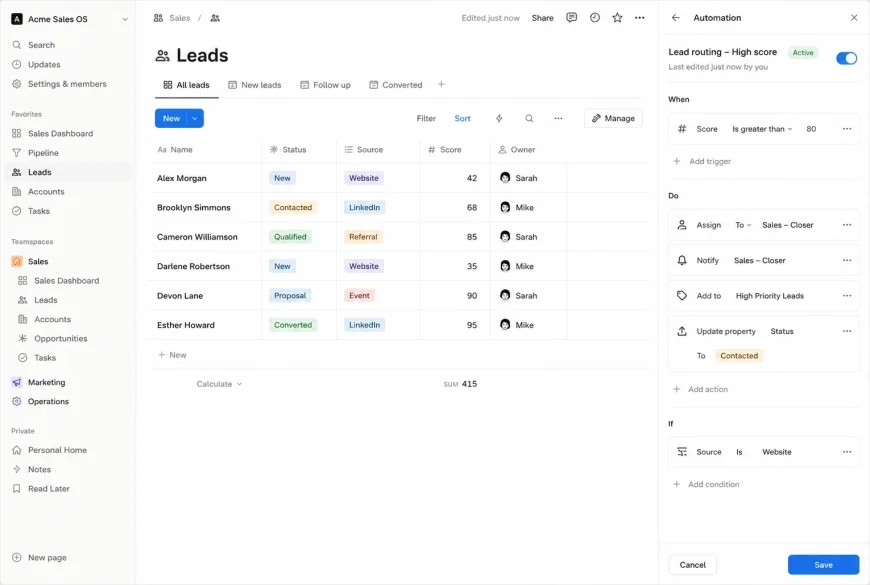 Figure 1: Setting up native triggers directly within Notion's database configuration panel simplifies workflow administration.
The Foundations of a Sustainable Notion Database Schema
You cannot automate a broken database. Attempting to build an automated workspace on top of an unorganized, flat database structure is the fastest way to experience system errors. To construct a workflow that scales gracefully, you must understand the concepts of notion relations and rollups.
Designing the Dual-Database Architecture
A professional project management setup requires at least two distinct databases linked by a relational database attribute:
- Projects Database: Houses high-level strategic objectives, key milestones, target launch dates, and client information.
- Tasks Database: Houses granular, actionable items that roll up to the primary projects.
By keeping these databases separate but interconnected via a Relation property, you ensure that individual daily tasks do not clutter your high-level project dashboards. Conversely, the high-level projects retain absolute visibility over outstanding operational tasks.
Leveraging Relations and Rollups for Dynamic Dashboards
Once you link your Projects and Tasks databases via a Relation property, Rollups allow you to aggregate critical metrics automatically. For instance, you can configure a Rollup property in your Projects database to look at the "Status" property of all related tasks. By setting the Rollup calculation to "Percent Checked" or "Percent Complete," your Projects database will automatically compute the exact progress of each project based on its constituent tasks.
This relational integrity forms the backbone of your automation capabilities. If you change a project's timeline, those changes can ripple through your task views using dynamic formulas. Without establishing these clean relational connections first, any attempt to link database environments will result in disjointed, disconnected data silos.
💡 Expert Analysis & Experience
When reviewing corporate workspaces, we often see a common pitfall: over-engineering. Building complex, multi-step systems right out of the gate is a recipe for broken links and frustrated users. A practical rule of thumb is to start with native database functions before introducing external platforms. Avoid relying entirely on third-party integrations for tasks that Notion's native database buttons and automations can now handle internally.
Step-by-Step Guide: How to Automate Notion for Project Workflows
Let us walk through the practical step-by-step process of constructing a highly efficient, automated project management system. We will configure native database triggers, establish custom buttons, and implement recurring tasks to keep your dashboards clean and modern.
Step 1: Define the Database Schema
First, create a new page in Notion and set up two databases side-by-side using the /database inline command. Name the first database [DB] Projects and the second [DB] Tasks. In your Tasks database, ensure you have the following essential properties configured:
- Task Name: Title property.
- Status: Status property with options for "To Do", "In Progress", "Review", and "Done".
- Assignee: Person property.
- Project: Relation property pointing to
[DB] Projects. - Priority: Select property with options "High", "Medium", and "Low".
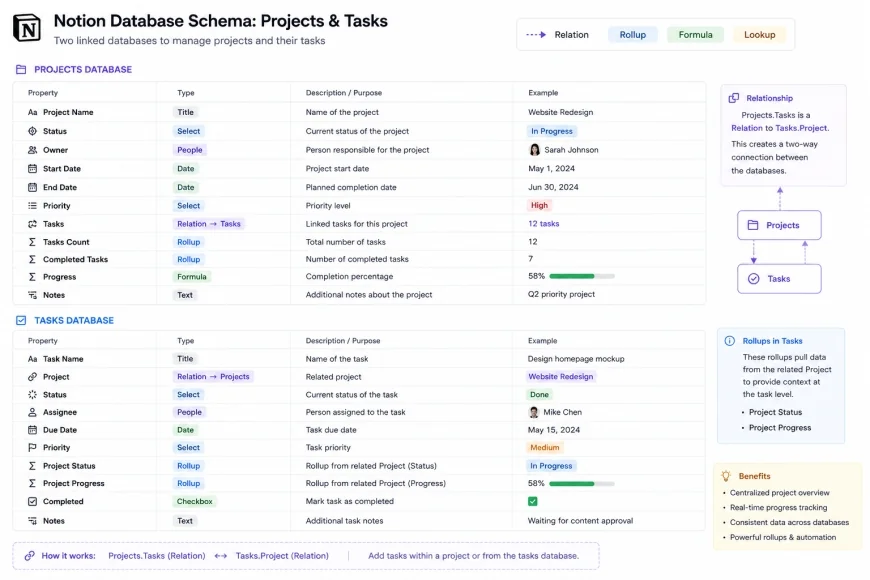 Figure 2: The optimal relational schema linking Projects and Tasks databases for automated data rollup.
Step 2: Configure Native Database Automations
With your schema in place, you can now construct your first native notion database automation. This automation will automatically assign a specific team member and update the priority when a task's status is shifted to "In Progress".
- Open the
[DB] Tasksdatabase and click on the lightning bolt icon (Automations) in the upper right-hand corner. - Click + New Automation.
- Name your automation: "Status Shift: In Progress".
- Under Trigger, select "Status" and set the condition to "In Progress".
- Under Action, select "Assignee" and choose the dynamic value "Person who triggered this automation" (or select a static lead project manager).
- Add a secondary action under the same trigger: set the "Priority" property to "High" automatically.
- Click Create to activate the automation.
By configuring this trigger natively, you eliminate the manual friction of reassigning cards as they move through your Kanban board views. Consequently, your project team can focus purely on execution rather than administrative upkeep.
Step 3: Implement Custom Notion Buttons
While database-level automations run in the background, notion buttons provide highly visual, user-initiated action steps directly on your dashboard. They are ideal for rapid task creation and status batching.
- Type
/buttonon your main project dashboard page to insert a new button block. - Label the button "Add Daily Standard Review Task".
- Select the action Add page to... and choose your
[DB] Tasksdatabase. - Pre-configure the page properties within the button settings: set the Task Name to "Daily Quality Review", set the Status to "To Do", and relate it to the current active project.
- Add another step inside the same button: Show confirmation or Open page to immediately redirect the user to their newly created task.
- Click Done.
Now, instead of navigating deep into database views, double-clicking rows, and manually typing repeated titles, your team members can generate fully structured tasks with a single click. This drastically improves the user adoption rate of your project tracking framework.
✅ Pro Tip
To maximize the utility of your custom buttons, place them in a global navigation bar at the top of your dashboard. By transforming these buttons into reusable templates, you can easily deploy them across multiple team dashboards without needing to reconfigure the database targets every single time.
Step 4: Establish Recurring Tasks
Many project tasks are cyclical, such as weekly status reports, monthly billing audits, or daily standups. Relying on team members to recreate these items manually is a recipe for overlooked deadlines. Utilizing recurring tasks notion templates solves this problem permanently.
- In your
[DB] Tasksdatabase, click the dropdown arrow next to the blue "New" button in the upper right. - Select + New Template.
- Design the template with the title "Weekly Team Sync" and pre-populate the body with standard meeting agendas.
- Exit the template editor. Click the dropdown next to "New" once more, locate your newly created "Weekly Team Sync" template, and click the three-dot menu icon beside it.
- Click Repeat and change the setting from "Off" to "Every Week".
- Specify the start date, the precise hour you want the template to generate, and the days of the week it should trigger (e.g., every Monday at 9:00 AM).
- Save your settings.
Every Monday morning, a fresh, pre-structured page will appear in your team's task inbox without anyone lifting a finger. This feature is processed natively on Notion's backend, maintaining absolute consistency across your operations.
| Platform Option | Automation Native Capabilities | Setup Complexity | Cost Barrier | Best Suited For |
|---|---|---|---|---|
| Notion (Native Engine) | High (Buttons, Triggers, Recurring Templates, Relations) | Low (No-code, UI-driven) | Included in Free / Plus tiers (with volume limits) | All-in-one workspaces, standard team databases |
| ClickUp | Extensive (Multi-action triggers, condition-rich formulas) | Medium | Paid tiers required for advanced logic | Highly structured, enterprise-level operations |
| Asana | High (Rules builder, external integrations) | Low-Medium | Premium plans required | Traditional corporate PM teams |
| Monday.com | Very High (Out-of-the-box automation recipes) | Medium | Steep pricing for custom automations | Cross-departmental tracking & resource management |
Practical Integration: When to Extend Beyond Native Boundaries
While native tools should always be your starting point, sophisticated operations occasionally reach the technical boundaries of Notion's built-in capabilities. For instance, if you require a multi-step conditional chain that triggers actions across external third-party tools, native database automation might fall short.
Practical Scenario
In practical use, a software development agency often needs to sync Notion task completions directly with Github pull requests and client billing systems. If a task in Notion is marked as "In Production", a native automation cannot natively interact with your secure accounting API. In this specific scenario, routing the webhook out of Notion via the Notion API and into an integration engine like Make or Zapier is the correct architectural choice.
When extending your system externally, always keep the native database as the "source of truth." Create a single webhook trigger that fires upon status updates, and let the third-party platform handle the heavy processing. This approach keeps your workspace performant and prevents background syncing loops that can quickly consume your automation limits.
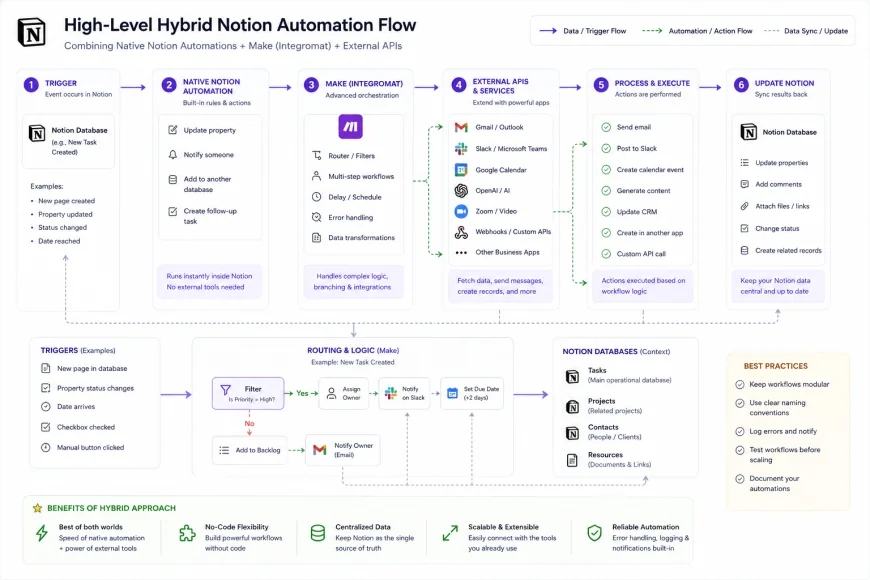 Figure 3: A hybrid model showing where native automations end and external APIs take over to keep systems stable.
Pricing, Plan Limits, and Licensing Mechanics
Notion's automation licensing depends heavily on your subscription tier. Understanding these limits is critical when designing a custom workspace for commercial use.
- Free Plan: Allows the creation of basic database templates and recurring tasks. However, custom database automations with advanced logic triggers are limited to viewing and editing capabilities of pre-existing templates, and creating custom automations is restricted.
- Plus Plan: Unlocks complete access to native database automations and triggers. Teams can build custom, multi-action native automations to run continuously. Volume limits apply based on monthly execution thresholds, so check the latest limits on the official Notion pricing documentation.
- Business & Enterprise Plans: Offer elevated execution limits, advanced admin controls over who can edit workspace automations, and expanded integration keys with secure enterprise APIs.
To avoid sudden workflow interruptions, design your databases with efficiency in mind. Avoid setting up automations that trigger on minor text edits or scroll actions, as these will rapidly deplete your workspace's execution allocations.
Balanced Comparison
- Low Latency: Native database automations run directly within the Notion client instantly.
- Reduced Subscription Overhead: Eliminates the need for expensive middle-tier subscription costs.
- Robust Data Structure: Kept safely inside Notion, preventing external sync disconnects.
- Dynamic Person Assignees: Dynamically assigns properties based on the user interacting with the page.
- No Multi-Step Loops: Native engine lacks nested conditional branching (e.g., If X, then Y, else Z).
- Platform Restrictions: Direct cross-app triggers still require third-party tools or custom API development.
- Limited Volume on Lower Tiers: Free and Plus tiers can hit execution bottlenecks if not built efficiently.
Is Native Notion Automation Right For You?
Solopreneurs & Small Teams: Native Notion database automations are a great fit. They provide robust functionality, instant execution, and cost savings by removing Zapier entirely from your workflow stack.
Mid-Sized Agencies: Highly recommended. Utilizing structured relation templates, rollups, and recurring task engines provides a rigid, professional-grade task tracker that scales with your client base.
Complex Enterprises: A hybrid approach is best. Use native automations to handle all internal workspace navigation and task transitions, while leveraging the secure Notion API to connect with legacy database systems, ERPs, and external reporting dashboards.
Where Notion Falls Short: Who Should Avoid This Setup?
While native tools are incredibly helpful, they are not a silver bullet. Large teams and complex operations often hit a wall with Notion's automation ecosystem. First, heavy databases cause noticeable UI lag; once a database grows to thousands of rows with multiple relation properties, search indexing and automated page creation can stutter. Second, the lack of true conditional branching (if-then-else logic) means native setups are rigid; you cannot create complex rules like "If priority is high and assignee is empty, assign to X, else assign to Y" natively without setting up separate, distinct automations for each scenario.
Furthermore, permissions are fragile. Anyone with edit access to a database can accidentally alter or disable automations, and there is no granular version control specifically for automation logic. Lastly, the steep pricing jump on renewal is a real concern—if you run out of execution limits on the Plus plan, upgrading to the Business tier just for more administrative controls and higher automation caps represents a significant jump in seat costs.
Recommended Choices by Purpose
If your primary objective is simplicity and quick deployment, look no further than Notion's built-in button blocks and recurring template schedules. They require zero technical expertise and deploy in minutes. However, if your focus is cross-platform interoperability, design your databases with clean relational schemas first, then link them to external services using the official Notion API for maximum stability and legal compliance.
Common Questions
Can I run a database automation that updates properties across a related database?
Yes. When configuring a native database automation action, you can choose to update pages located in a related database. For example, when you mark a Project as "Completed" in your Projects database, your automation can automatically update all related tasks in your Tasks database to "Done".
Do native Notion automations count toward external API limits?
No. Native automations occur entirely within Notion's ecosystem and do not rely on your internal integration keys or API limits. However, they are subject to Notion's subscription-tier monthly execution quotas.
How do I debug a native automation that is not triggering correctly?
First, ensure that the database schema has not been altered (such as renaming or deleting properties that the automation relies upon). Next, check the execution log inside the database's automation settings menu to see if the trigger fired and if any permissions errors prevented the actions from executing.
Can I trigger an automation to send an email natively?
While Notion does not send raw transactional emails directly from its database trigger menu yet, you can configure an automation to send a native notification to Slack or ping a workspace member within Notion. For complete email outreach, you will need to utilize the official developer API or integrate with an email tool.
Practical Implementation Checklist
To ensure your workspace automations deploy successfully without causing logic loops or breaking your existing workflows, proceed through the following steps systematically:
- Define task stages (e.g., To Do, In Progress, Review, Done) on paper first.
- Build the core Projects and Tasks databases and relate them to each other.
- Create a native Notion automation that updates task assignees upon stage changes.
- Set up a recurring template for standard weekly project checkpoints.
- Add a custom button block to your dashboard for 'One-Click Daily Task Creation'.
- Test the entire automation flow using dummy tasks to ensure no logic loops exist.