Free AI Lip Sync Animation Tools: Step-by-Step Guide
Learn how to use free AI lip sync animation tools to perfectly match audio to any character. Follow our easy, step-by-step guide for realistic results.
 Abir Bin Hasan
Free AI Lip Sync Animation Tools: Step-by-Step Guide
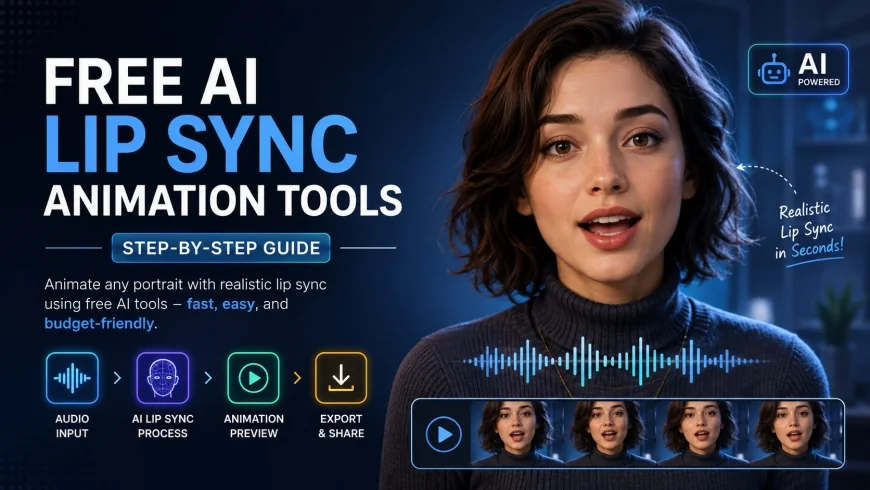
Generating realistic animated portraits used to be the exclusive domain of major VFX studios, requiring expensive motion capture gear and tedious frame-by-frame adjustments. Today, open-source machine learning models have fundamentally changed the equation, letting creators pair audio files with static portraits in a matter of seconds. This step-by-step guide breaks down the practical options available today, helping you find a setup that balances visual quality with workflow efficiency—without breaking your budget.
Core Considerations
Before committing to a specific pipeline, it pays to map out your technical comfort level and rendering needs. The landscape is largely split into two camps: low-friction, cloud-hosted web interfaces that work instantly in your browser, and highly customizable, local open-source models that cost nothing to run but require some command-line familiarity. To keep your expectations grounded, this breakdown looks at the real-world trade-offs in processing times, licensing rights, and overall visual fidelity.
Analysis Methodology
This overview relies on technical documentation, open-source repository updates, user discussions in developer communities, and realistic performance benchmarks. Rather than parroting marketing claims, we focus on the practical realities of deploying these models—looking specifically at resolution limits, processing delays on public servers, and the visual cleanup steps usually needed to make the output look truly convincing.
The Evolution of Voice-to-Video Synchronization
Moving from manual frame-by-frame dialog matching to automated neural rendering is a massive shift for digital creators. In traditional animation, artists had to painstakingly pair phonemes—the actual sounds of speech—with visemes, the visual mouth shapes associated with those sounds. It was slow, expensive, and often ended up looking stiff or robotic if the timing was even slightly off.
Modern approaches approach the problem differently, relying on deep learning networks trained on thousands of hours of speech and facial footage. By utilizing convolutional neural networks (CNNs) and generative adversarial networks (GANs), these programs map the frequency data of an audio track directly to facial landmark coordinates. The result is a much faster, automated pipeline that can generate dynamic talking sequences in a fraction of the time.
Under the hood, as outlined in papers hosted on the arXiv Cornell University repository, these systems analyze the spectral characteristics of an input audio file—often focusing on Mel-frequency cepstral coefficients (MFCCs). The model then projects these acoustic patterns onto spatial coordinates for the jaw, lips, and cheeks, turning a single static image into a moving speaker. While the tech is highly complex, it has opened up incredibly simple workflows for localizing video content, creating educational resources, and building independent projects.
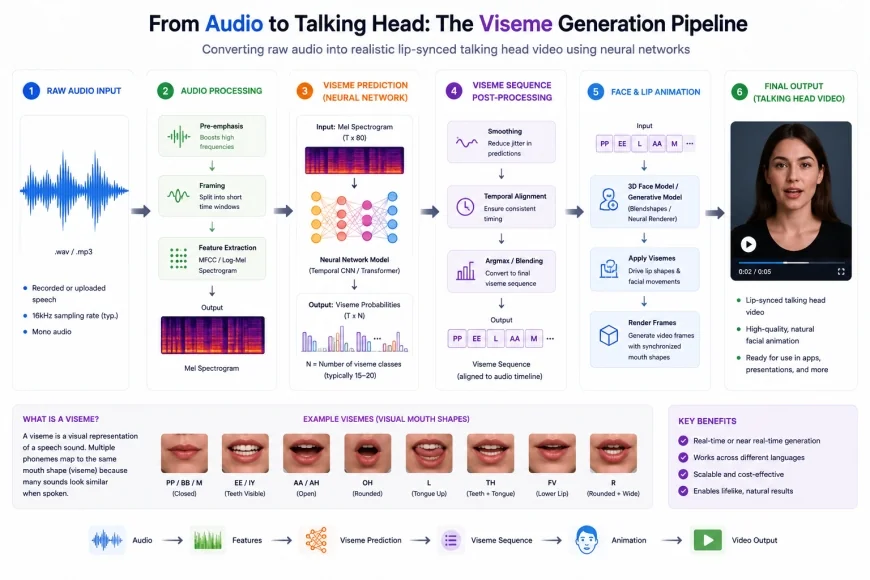 The automated pipeline converts raw audio waves into localized visual mouth shapes using deep learning models.
The Best Free AI Lip Sync Animation Tools
Finding a reliable, genuinely free option in this space can be frustrating. Many web-based platforms claim to offer free services, only to lock higher resolutions, basic downloading rights, or commercial licenses behind steep subscription walls. Because of this, developers and indie creators often rely on open-source repositories or public cloud spaces.
The baseline standard for open-source synchronization remains Wav2Lip, a model originally built by researchers at IIIT Hyderabad. According to the official Wav2Lip repository on GitHub, this network uses a specialized discriminator to make sure the generated mouth movements match the audio, regardless of the speaker’s head angle, lighting conditions, or language. It is highly versatile and serves as the underlying engine for many of the free web-based alternatives you find online today.
If you need more natural, expressive results, SadTalker has become a highly popular alternative. Typically hosted on public Hugging Face Spaces, SadTalker goes beyond simple mouth movement by generating realistic head-bobbing, subtle shoulder adjustments, and eye blinks. By calculating 3D motion paths from the audio, it helps counter the flat, lifeless look that often ruins simpler voice-to-video renders.
Step-by-Step Guide: How to Lip Sync Audio with AI
Getting a clean, convincing output requires careful asset preparation. If you feed a model low-quality inputs, you will likely end up with strange visual distortions. Follow this step-by-step workflow to get the best possible results using public web spaces and open-source interfaces.
Step 1: Prepare Your Source Assets
Your final video is only as good as your starting files. To help the neural network map facial coordinates accurately, use a clear, high-resolution, forward-facing portrait. The subject’s mouth should ideally be closed, and the lighting across the face should be balanced, without harsh side shadows or dramatic angles.
For your audio, use a clean, dry vocal track. Background noise, music, or heavy echo will confuse the model, leading to erratic mouth movements. If necessary, use a free audio editor like Audacity to strip out background noise and boost the vocal frequencies before processing.
Step 2: Accessing the AI Model on Hugging Face
If you want to avoid setting up a complex local coding environment, public cloud-hosted spaces are your best bet. Head over to Hugging Face and search for active, highly rated spaces running Wav2Lip or SadTalker. These web interfaces let you utilize cloud GPUs to run the models without taxing your own computer.
Once you are on the page, use the drag-and-drop zones to upload your clean portrait and your edited audio file into their respective input slots.
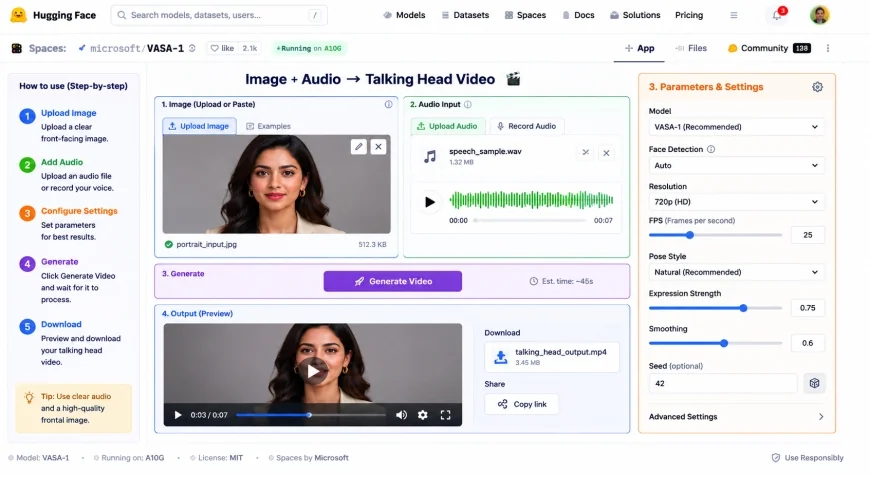 Selecting high-quality source files and uploading them to cloud-based Hugging Face Spaces is the first step toward a clean render.
Step 3: Configuring Output Parameters
Before clicking the generate button, check the optional settings to improve your final output. If the interface has a "Face Enhance" or "GFPGAN" toggle, turn it on. This runs a secondary restoration model over the generated face, which drastically reduces the blocky, low-resolution mouth textures common to older models.
If you are working with SadTalker, choose a head motion style that fits your project. A "still" setting is usually best for formal presentations, while a dynamic setting adds personality to expressive characters. Once configured, submit your job to the processing queue.
Step 4: Post-Processing and Refinement
Download the rendered MP4 once processing wraps up. Because free web tools occasionally output compressed files with minor visual flaws, bringing your video into a free editor like DaVinci Resolve is highly recommended. Here, you can color-correct the footage, manually nudge the audio track if it drifted slightly out of sync during the render, and export your finished file.
💡 Expert Analysis & Experience
When running files through public Hugging Face Spaces, server traffic is a major variable. During peak hours, a simple 20-second clip can sit in a rendering queue for up to fifteen or twenty minutes. Additionally, because classic Wav2Lip downscales the mouth region to a tiny 96x96 grid, the teeth and lips can look noticeably blurry compared to the rest of the high-res face. To work around this, it is often smarter to use Google Colab notebooks, which give you dedicated cloud hardware, or run your renders late at night when public queues are shorter.
| Platform / Model | Processing Environment | Emotional Control | Maximum Resolution | Licensing Terms |
|---|---|---|---|---|
| Wav2Lip (GitHub/Hugging Face) | Web / Local Python | None (Static head and eyes) | Source Dependent (Mouth area downscaled) | Non-commercial (Academic research only) |
| SadTalker (Hugging Face Space) | Web / Local Python | Moderate (Automatic head tilt & eye blinks) | 512x512 pixels (Up Scaled via GFPGAN) | Non-commercial (Academic research only) |
| Lalamu Studio (Free Web Tier) | Cloud Browser | Low (Basic motion presets) | 720p (Includes watermarks on free accounts) | Commercial licenses available on paid tiers |
| RunwayML (Research Gen-1/Gen-2) | SaaS Cloud Platform | High (Advanced keyframing options) | Up to 4K (Requires paid subscription) | Commercial rights included in paid tiers |
Bypassing the "Uncanny Valley" Effect
The single biggest hurdle when working with web-based animation tools is the "uncanny valley"—that off-putting feeling viewers get when a digital face is almost realistic, but not quite. This usually happens because older models only animate the mouth, leaving the eyes, brows, and upper face completely frozen while the character speaks.
To avoid this, creators are increasingly choosing systems that simulate natural body language. Adding slight, randomized head tilts, subtle shoulder shifts, and periodic eye blinks makes the character look alive, rather than like a static image with a moving mouth overlay.
Furthermore, many content teams are now combining these animators with synthetic voice cloning to build completely automated pipelines. By translating and cloning a speaker’s original voice into multiple languages, then running those audio files through an avatar generator, you can localize a training video or marketing presentation for global markets with surprisingly little friction.
Practical Scenario
In professional workflows, a raw output from a free generator rarely goes directly to the client. If you are localizing a marketing campaign, a frozen background and unblinking eyes can make the video look cheap. To fix this, editors often use software like Adobe After Effects to mask out the animated mouth, feathering it gently back onto the high-definition, naturally moving original video of the actor. This hybrid approach gives you perfect audio synchronization without losing the natural expressions of the original footage.
✅ Pro Tip
Never feed a music-mixed track directly into a lip-sync model. The system’s audio analyzer will mistake background drums or bass notes for speech sounds, causing the mouth to twitch or open erratically. Always run your file through a simple vocal isolation tool first, generate the video using the clean, dry voice track, and then blend your background music back in during final video editing.
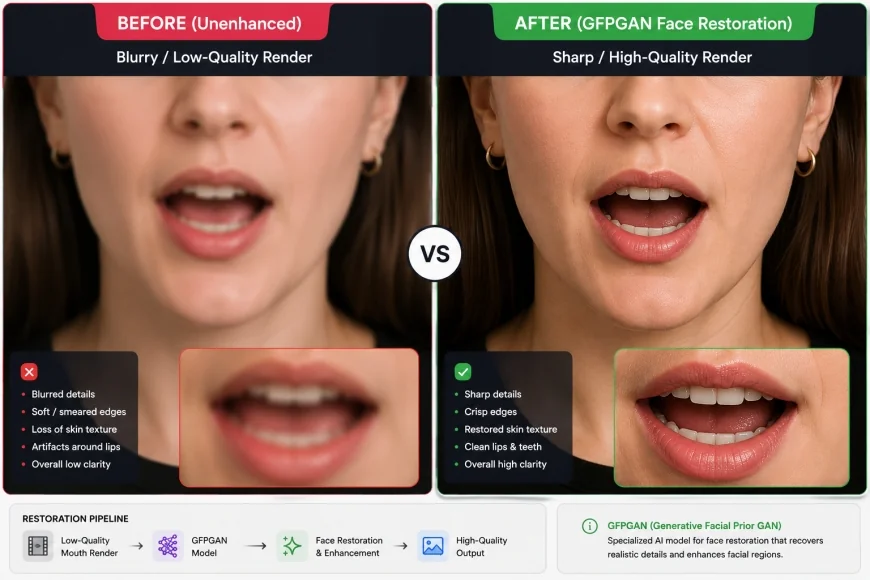 Using face-restoration neural networks like GFPGAN corrects the low-resolution visual artifacts common to standard generative models.
Pricing, Hosting, & Licensing Demystified
Understanding the legal boundaries of these tools is critical if you are doing client work or running a commercial channel. Many of the most popular free platforms online are built directly on top of academic models that are strictly restricted to non-commercial research.
For example, the official repository terms for Wav2Lip on GitHub state that the model weights are released under a non-commercial academic license. If you plan to monetize videos using this model, you legally need to negotiate custom terms or train a custom model from scratch. On the other hand, commercial SaaS alternatives offer straightforward commercial rights, but their free tiers are usually restricted by low-resolution caps, watermarks, or limited credits.
If you want to stay strictly legal without paying for high-end software, keep an eye on new open-source models published under permissive licenses like MIT or Apache 2.0. These academic papers, regularly indexed on services like arXiv Cornell University, allow you to modify, host, and monetize your tools without worrying about legal complications down the road.
Balanced Comparison
- No Financial Barriers: Open-source projects and public Hugging Face spaces cost nothing to use.
- Language Agnostic: These models track phonetic audio frequencies, meaning they process regional accents and foreign languages smoothly.
- Quick Turnaround: Lets you generate rough mock-ups or localized drafts in just a few minutes.
- Highly Customizable: Running models locally allows developers to fine-tune weights for specific art styles.
- Licensing Gray Areas: Many academic-backed open-source models prohibit commercial use and monetization.
- Unpredictable Rendering Queues: Public web tools often leave you waiting in long lines during high-traffic hours.
- Stiff Upper Faces: Basic models focus entirely on the mouth, leaving the eyes and forehead completely frozen.
- Resolution Limits: Lower-resolution mouth zones can look pixelated or blurry when composited onto HD images.
Who should use what—and who should steer clear?
If you are a hobbyist, a student, or just experimenting, free web-hosted interfaces like Hugging Face are ideal. They let you play with the tech without installing heavy software. However, professional marketers and business owners who need immediate turnarounds should think twice. If you cannot afford to wait in a 15-minute queue for a 10-second render, or if you lack the technical patience to troubleshoot Python dependencies on a local machine, these open-source tools will likely frustrate you. Furthermore, anyone requiring strict data privacy should avoid public cloud spaces, as your uploaded assets are processed on shared public servers.
Recommended Choices by Purpose
Your ideal setup depends on what you are trying to build. If your priority is highly accurate mouth alignment across different languages and you don't mind a technical setup, running the classic Wav2Lip model via a Google Colab notebook remains the most reliable technical option. If you need natural human movements like eye blinks and subtle head tilts without writing code, SadTalker via a public Hugging Face Space is the best creative choice. For commercial projects where rendering speed and legal safety are paramount, it is usually worth paying for a reputable SaaS platform’s commercial tier to bypass processing queues and secure full rights to your content.
Frequently Asked Questions
Is there a completely free AI lip sync tool without watermarks?
Yes. If you run open-source models like Wav2Lip or SadTalker locally or use public, unbranded Hugging Face Spaces, your output videos will not have watermarks. However, you must still adhere to the academic, non-commercial licenses that govern these models.
Why does the mouth look blurry when using Wav2Lip?
The original Wav2Lip model was trained on low-resolution video crops where the mouth region was only 96x96 pixels. When the model processes your image, it downscales the mouth area, creating a blurry patch on high-definition portraits. Enabling a post-processing tool like GFPGAN or CodeFormer helps restore sharpness and texture to the mouth area.
Can I lip-sync an animated cartoon character using these tools?
Yes, but results vary. If the character has human-like proportions and a clearly defined mouth line, models like SadTalker can usually map the movement. However, stylized 2D cartoons, abstract characters, or animals often cause tracking errors and highly distorted results.
How long of an audio track can I sync with free tools?
Most public web-based tools limit inputs to between 15 and 60 seconds to manage server load. If you need to sync a longer audio file, you will either need to run the model locally on your own hardware or split your audio into smaller clips, render them separately, and stitch them back together in a video editor.
Do these tools support languages other than English?
Yes. Because these models analyze phonetic sounds and raw frequencies rather than specific words, they are entirely language-agnostic. They work just as well with German, Japanese, Spanish, or even whispered and singing vocals.
Practical Checklist for Flawless AI Lip Syncing
- Choose a clear, front-facing portrait with a neutral expression and a closed mouth.
- Clean up your audio track to remove background hums, wind noise, or background music.
- Crop your source image to a standard 1:1 square ratio to avoid unintended stretching.
- Run a quick 3-second test render to check sync alignment before committing to a long clip.
- Make sure "Face Enhance" or "GFPGAN" is selected to avoid pixelated or blurry mouth renders.