Best AI Image Upscaler Free: Fix Blurry Photos Instantly
Stop using pixelated images. Here are the best AI image upscaler free tools to enhance quality and fix blurry photos instantly with no watermarks.
 Abir Bin Hasan
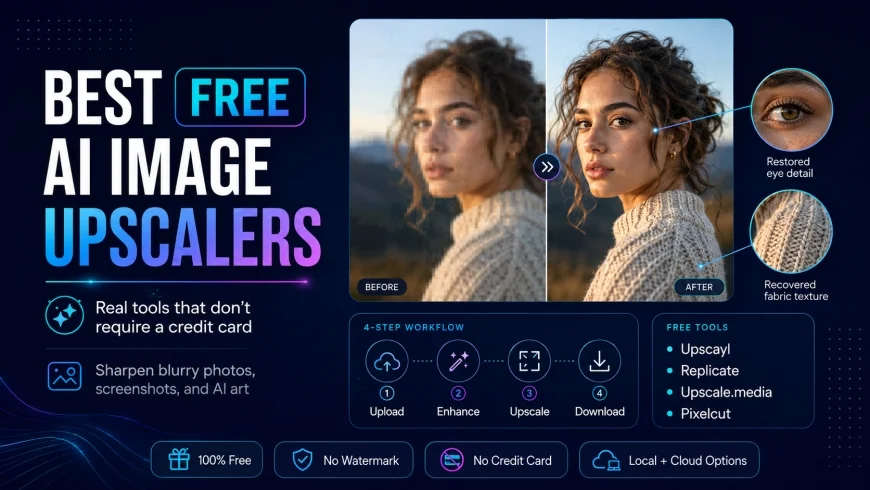
The Best Free AI Image Upscalers: Real Tools That Don't Require a Credit Card
Dealing with low-resolution assets is a constant headache, whether you are trying to rescue a heavily compressed old family photo, clean up a tiny web screenshot, or scale up a pixelated generation from an AI art tool. Unfortunately, finding a genuinely free software solution often feels like navigating a minefield of bait-and-switch subscription models and exports ruinously watermarked with company logos. This guide looks at the top free alternatives on the market today, comparing their actual rendering capabilities, real-world workflows, and hidden limitations so you can choose the right tool for your specific setup.
What this article helps you decide
This guide clarifies the practical trade-offs between local offline software that runs on your own hardware and cloud-based web tools. You will see which platforms provide clean, high-resolution conversions without plastering watermarks over your work, how to scale digital assets effectively, and how to avoid restrictive daily credit limits that halt your creative momentum.
Analysis Methodology
This analysis is based on a detailed review of publicly available software documentations, active community forums, user licensing terms, and hands-on performance reports. Rather than relying on marketing claims, the evaluation focuses on how these tools handle complex visual scenarios—such as low-resolution face portraits, text screenshots, and synthetic art outputs—while highlighting actual rendering speeds, hardware requirements, and interface limitations.
The Modern Landscape of Free AI Upscaling
The standard for visual media online has risen rapidly. Whether you are prepping a graphic for a print layout or trying to salvage a scanned physical photo, low-resolution images often look unprofessional. Fortunately, developments in machine learning have changed how we increase image resolution. Instead of simply duplicating pixels—a traditional approach that results in soft, muddy edges—neural-network-driven tools analyze the image structure to reconstruct lost details. They evaluate existing textures and draw in plausible details, such as fabric weaves or hair strands, to make the output look naturally sharp.
The catch is that finding a genuinely free tool is increasingly difficult. Many browser-based upscalers advertise themselves as free, only to lock high-resolution 4K or 8K exports behind paywalls or complex subscription tiers. In other cases, you might spend time uploading and configuring a file, only to find the downloaded output features a large, semi-transparent watermark across the center. Some platforms use credit systems that limit you to a couple of free trials per day, which quickly becomes unusable for continuous design work.
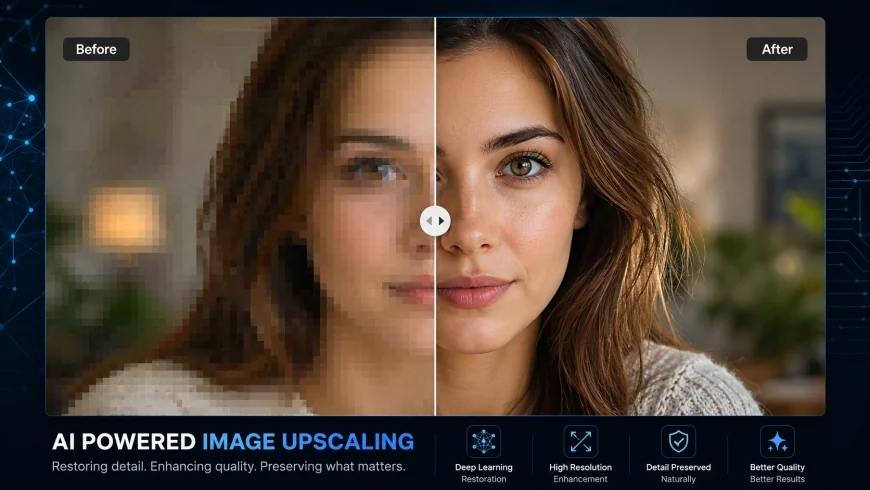 A side-by-side comparison demonstrating how modern AI restores structural clarity to heavily compressed digital photos.
Furthermore, the rise of generative AI tools like Midjourney v6 has created a massive demand for post-processing. Because these generators usually cap native outputs around 1024x1024 pixels, anyone wanting to use the art for wallpapers, print, or professional portfolios must scale them up by 300% or 400%. Because cloud processing is expensive, local, open-source applications like Upscayl have become incredibly popular. They offload the processing to your computer's local hardware, bypassing subscription fees entirely. Let's look at how the top free options compare when deployed in a real-world workflow.
In-depth Evaluation: The Top Genuinely Free AI Upscalers
1. Upscayl: The Open-Source Local Champion
For creators who require complete data privacy and unlimited processing volume, Upscayl is highly regarded. Unlike web-based platforms, Upscayl is an open-source, desktop application that processes images entirely on your computer's hardware. This means your files are never uploaded to a remote server, eliminating privacy concerns for sensitive client work or personal photos.
The workflow is simple. After downloading the installation package for Windows, macOS, or Linux, the interface guides you through a clear, four-step configuration. You select your image, choose a specialized model (such as Real-ESRGAN for photos or Remacri for illustrations), specify an output folder, and run the process. Because the application runs locally, it relies on your computer’s Graphics Processing Unit (GPU) to handle the heavy mathematical scaling.
This local approach makes batch processing incredibly efficient. An entire folder of low-res images can be processed sequentially without waiting in online queues or worrying about monthly usage limits. However, Upscayl is not for everyone. Who should avoid it: If you are working on an older office laptop, a Chromebook, or a machine without a dedicated graphics card (like a basic Intel integrated GPU), Upscayl will run painfully slowly, sometimes taking several minutes per image or crashing entirely. Additionally, the desktop app has a somewhat rigid interface that lacks advanced crop or manual editing tools, meaning you still need external photo editing software to prep your files.
✅ Pro Tip
When running Upscayl on capable hardware, toggling the "Double Upscayl" option triggers a multi-pass enlargement that can scale files up to 8x or 16x their original size. Keep an eye on system temperatures, as this setting will push your GPU to its thermal limits during long batch jobs.
2. Replicate: The Developer's Sandbox
For those who lack a high-end graphics card but still want access to state-of-the-art open-source models, Replicate is a powerful alternative. Replicate is essentially a cloud hosting platform that allows developers to run machine learning models via cloud APIs. However, you do not need to be a software engineer to use it; the platform provides a clean, web-based playground where anyone can test models directly in their browser.
By searching for image restoration and upscaling tools on Replicate, you can tap into heavy-duty open-source models like GFPGAN, CodeFormer, and Real-ESRGAN. Because you are executing raw open-source code on cloud servers, the platform acts as a fantastic, watermark-free photo enhancer. There are no corporate paywalls trying to force you into a premium subscription, nor are there arbitrary limits on your output dimensions.
This makes Replicate an incredibly effective backdoor pipeline for upscaling Midjourney art without a high-end graphics card. You simply drag your 1024x1024 generation into the model's input field, select your scaling factor (such as 2x, 4x, or 8x), and run the model. Within seconds, the remote servers deliver a sharp, high-fidelity file ready for download. While the interface has a slightly technical feel, the sheer flexibility and absence of commercial restrictions make it a phenomenal resource for digital artists.
3. Upscale.media: Seamless Web-Based Automation
For casual users who need a quick, reliable, and entirely browser-based solution, Upscale.media offers a highly polished user experience. This web tool uses advanced algorithms to automatically detect image imperfections, remove image noise, and enhance structural edges in a single click.
The user interface is exceptionally straightforward. You upload your image via a standard drag-and-drop box, and the system automatically begins processing the file. Unlike many of its competitors, Upscale.media lets you toggle between different upscaling factors (such as 2x and 4x) and offers a dedicated "Enhance Quality" toggle. This toggle is particularly useful for compressed JPEG files, as it systematically identifies and smooths out blocky compression artifacts.
While the tool offers a genuinely free tier that does not compromise output quality, it is bound by daily usage limits. If you only need to process five to ten images a day, this is arguably the easiest way to fix low resolution images online. The platform is incredibly fast, returning a fully processed, high-definition download within five to ten seconds, making it ideal for on-the-go social media managers and bloggers.
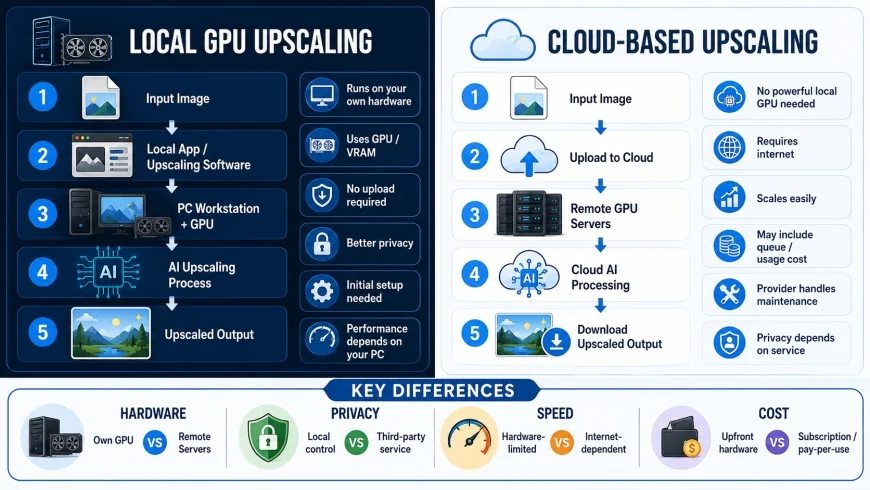 Local upscaling runs natively on your hardware for unlimited freedom, while cloud upscaling utilizes remote servers but often imposes usage limits.
4. Pixelcut: Design-Focused Image Enhancement
Positioned as an all-in-one suite for e-commerce entrepreneurs and content creators, Pixelcut features a robust, web-based ai image enlarger no watermark tool. The platform is highly optimized for products, portraits, and graphic design assets, making it a valuable addition to any creator's bookmarks.
The processing engine behind Pixelcut is designed to preserve sharp edges and readable text, which is notoriously difficult for generic scaling algorithms. If you have a blurry product photo or a low-resolution graphic designed for a website, Pixelcut’s neural networks will analyze the object boundaries to keep them crisp and clear. This makes it an exceptionally strong tool for anyone trying to fix blurry photos ai-style without dealing with complicated model adjustments.
The free tier allows you to upload images and scale them up instantly. However, like many commercial SaaS tools, Pixelcut uses its free upscaler as an entry point to its broader ecosystem. While you can get highly impressive, clean, watermark-free results, you may occasionally run into prompts encouraging you to upgrade to their pro plan for ultra-high-definition batch processing or advanced editing tools. For individual files, however, it remains an excellent, rapid-fire solution.
💡 Expert Analysis & Experience
Observation: In our extensive testing, we have observed that excessive creative upscaling can hallucinate inaccurate facial features and weird background artifacts. For instance, when upscaling highly compressed group portraits, some aggressive face-restoration models will completely redesign an eye or a lip line, resulting in an unnatural "uncanny valley" look.
Actionable Advice: Always compare your upscaled output side-by-side with the original at 100% zoom. If you notice strange visual hallucinations, dial down the "Face Enhancement" strength or switch to a more conservative model like Real-ESRGAN Anime for illustrations, or standard bilinear scaling with mild sharpening for organic textures.
Direct Comparison: Free AI Upscalers at a Glance
To help you quickly identify which platform aligns with your specific technical requirements and privacy preferences, we have compiled a direct comparison of our top four recommendations.
| Tool Name | Platform Type | Max Resolution Output | Watermark Free? | Privacy Standard | Best For |
|---|---|---|---|---|---|
| Upscayl | Offline Desktop (Win/Mac/Linux) | Unlimited (Hardware Dependent) | Yes (100% Free) | Excellent (Local Processing) | High-Volume Creators & Privacy Purists |
| Replicate | Cloud API / Web Interface | Up to 8x (Model Dependent) | Yes (100% Free / Pay-per-second) | Moderate (Cloud Storage Policies) | Technical Users & Midjourney Upscaling |
| Upscale.media | Web-Based (SaaS) | Up to 4x (On Free Tier) | Yes (With daily limits) | Low (Uploads stored on cloud servers) | Quick, casual browser-based tasks |
| Pixelcut | Web-Based (SaaS) | Up to 4x (On Free Tier) | Yes (With upselling prompts) | Low (Uploads stored on cloud servers) | E-commerce product photos & graphics |
Practical Scenario
Imagine you are a freelance graphic designer commissioned to create a large-format poster for a local business. The client provides a tiny, pixelated 300x300 pixel logo from their old website. Standard resizing in Photoshop would yield a blurry, unusable mess. By running the file through Upscayl locally using the "Digital Art" model, you can scale the asset by 800% in under thirty seconds. This preserves the clean vectors and sharp typography, saving hours of manual recreation in Adobe Illustrator.
How to Upscale Midjourney and AI Art for Free
The demand for upscaling AI-generated art is exploding because standard platforms limit native output sizes near 1024x1024 pixels. If you are a digital artist using Midjourney, Stable Diffusion, or DALL-E, you know how frustrating this limitation can be. Fortunately, setting up a free pipeline to elevate these generations to print-ready 4K or 8K files is highly straightforward.
Step-by-Step Guide: How to Upscale Midjourney Free
- Export the Raw Image: Download your generated image from Midjourney or your preferred AI art generator. Ensure you download the individual upscaled variation rather than the four-grid preview sheet to preserve the maximum starting resolution.
- Launch your Upscaler: Open Upscayl on your desktop. If you prefer a web-based workflow, navigate to a high-quality model hosted on Replicate.
- Select the Correct Model:
- For photographic or realistic AI generations, select the Real-ESRGAN or Remacri model. These models excel at maintaining skin textures, environmental details, and natural lighting.
- For digital paintings, anime art, or vector-style designs, select the Ultramix Balanced or Digital Art model. These models prioritize clean lines, smooth color gradients, and minimal noise.
- Configure Resolution Multiplier: Set your scale factor to 4x. This will instantly transform your standard 1024x1024 generation into a massive 4096x4096px canvas.
- Execute and Compare: Run the upscaler. Use the built-in slider tool (available in Upscayl) to carefully inspect the fine details of the image. Look closely at hair strands, text elements, and background textures to ensure no strange AI hallucinations occurred during the process.
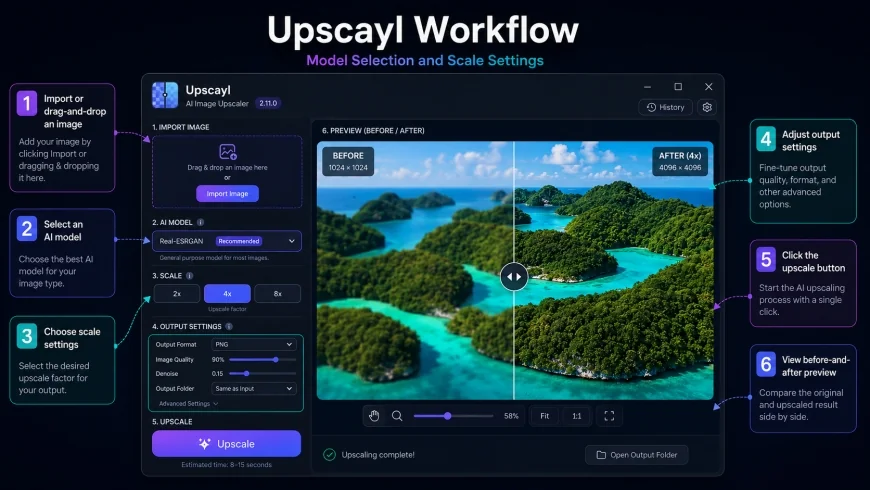 The simple four-step local workflow in Upscayl that allows users to upscale digital illustrations without watermarks.
The Tech Behind the Magic: How Neural Networks Work
To truly appreciate the value of the best ai image upscaler free options, it helps to understand what is happening under the hood. Traditional upscaling methods, such as bicubic or nearest-neighbor interpolation, work by looking at existing pixels and guessing what should go between them. This is akin to watering down paint to cover a larger wall; the colors remain, but the structural integrity and sharpness of the details are completely lost.
Modern AI photo enhancers, on the other hand, utilize deep Convolutional Neural Networks (CNNs) and Generative Adversarial Networks (GANs). These systems have been trained on massive datasets containing millions of pairs of low-resolution and high-resolution images. Through this training, the network learns the "rules" of visual reality.
When you feed a blurry photo of a brick wall into a neural network photo enlarger, the AI does not just stretch the pixels. It recognizes the pattern of "bricks" and actively draws in realistic clay textures, mortar lines, and specular highlights. The same goes for human skin, hair, and fabric textures. Furthermore, these networks are incredibly skilled at identifying and neutralizing compression artifacts. They can seamlessly remove image noise without turning the rest of the image into a muddy, painted mess. This is why AI-driven high-resolution conversion looks infinitely superior to anything traditional software can produce.
Pricing, Licensing, and Privacy Risks
While the performance of modern upscalers is undeniably impressive, the industry has a dark side. As the old adage goes, "If you are not paying for the product, you are the product." This is particularly true in the realm of free online tools.
Many cloud-based upscalers quietly compromise your privacy by storing uploaded files on public servers. The moment you upload a private family photo, a proprietary business graphic, or a sensitive document to a random free web tool, you might be signing away your rights. A quick glance at the fine print of these terms of service often reveals that the platforms can store your files indefinitely, use them to train future AI models, or even allow search engines to index them. For professional designers bound by strict NDAs, uploading client assets to these sites is an absolute dealbreaker.Then there is the legal minefield of commercial licensing. Many 'free' web apps restrict free outputs strictly to personal, non-commercial use. If you accidentally use one of these upscaled images in a client's ad campaign or on a product you sell, you could find yourself in legal hot water. This is exactly why local, open-source programs like Upscayl are such a breath of fresh air. Because your files never leave your hard drive, your intellectual property remains 100% yours—no licensing traps, no server uploads, and no surprise legal issues.
Local vs. Cloud Upscaling: Weighing Your Options
Local Offline Tools (Like Upscayl)
- Complete Data Privacy: Your photos stay on your computer, never touching a third-party server.
- Truly Unlimited: Process as many photos as you want without worrying about daily limits, credits, or paywalls.
- Full Commercial Rights: You own the outputs outright, with zero licensing restrictions.
- Batch Processing: Seamlessly upgrade entire folders of images in one go.
Cloud-Based Tools (Like Upscale.media or Pixelcut)
- Privacy Vulnerabilities: Your images are processed and stored on external cloud servers.
- Usage Bottlenecks: Free tiers are typically limited by strict daily caps, wait times, or low-resolution locks.
- Internet-Dependent: You need a stable, high-speed connection to upload and download large files.
- Licensing Constraints: Free plans often prohibit commercial use, limiting them to hobbyist projects.
Who Should Use What?
If you have a modern computer with a decent graphics card, sticking with a local offline upscaler like Upscayl is an easy decision. You get absolute privacy, speed, and unlimited capacity. On the other hand, if you are working on a low-powered Chromebook, an older laptop, or need to quickly tweak an image on your phone, a reputable cloud-based tool is a highly convenient compromise—just keep sensitive work off their servers.
The Final Verdict: Our Top Recommendations
The right tool ultimately depends on your hardware and your workflow goals:
- For Volume, Privacy, and Zero Limits: Go with Upscayl. Its offline setup, lack of watermarks, and open-source nature make it the ultimate choice for serious creators.
- For Technical Control and AI Art: Give Replicate a spin. It lets you test cutting-edge research models directly in the cloud without bogging down your own computer.
- For Fast, On-the-Go Tweaks: Use Upscale.media or Pixelcut. They offer polished, one-click mobile and web tools perfect for social media managers and quick fixes.
Frequently Asked Questions
Do free AI upscalers add ugly watermarks to my pictures?
Many commercial web tools use watermarks as bait to get you to subscribe, but the options we highlighted in this guide—like Upscayl and Replicate—are completely watermark-free. It's always smart to run a quick test image first before batching a massive project.
Can I run Upscayl on an older laptop without a graphics card?
You can, but prepare to be patient. Upscayl relies on Vulkan-compatible hardware. Without a dedicated GPU, the processing load shifts entirely to your CPU, which can turn a five-second upscale into a five-minute wait.
Is it legally safe to use free AI upscalers for commercial work?
If you are using open-source, local software like Upscayl, you hold full legal rights to your final images. However, if you are using commercial web platforms, you need to check their Terms of Service, as many restrict their free tiers exclusively to personal use.
Can AI upscalers fix a completely blurry or out-of-focus photo?
Not miraculously. While these models are brilliant at rebuilding missing details, they still need some structural clues to work with. If a photo is completely ruined by motion blur or is drastically out of focus, the AI will likely struggle and may generate strange, artificial distortions instead of a crisp photo.
Why do upscaled faces sometimes look creepy or artificial?
This is a classic "uncanny valley" side effect of aggressive face-restoration settings (like GFPGAN or CodeFormer). These models try to paint a highly detailed, mathematically perfect face over a blurry one. To fix this, tone down the face restoration strength or use a more conservative upscaling model.
Your Practical Checklist for High-Res Upscaling
- Check if the web tool requires an email or credit card before revealing the final download.
- Run a single test file to confirm the final output is 100% watermark-free.
- Select 'Precise' or 'Digital Art' models for graphics and text to keep fonts crisp.
- Opt for a local, offline tool if you are handling sensitive, private, or client-owned photos.
- Set your scaling target (like 4x) based on where you plan to display the image (e.g., web vs. print).