Mastering Notion AI Prompt Templates: Step-by-Step Project Management System
Stop writing prompts from scratch. Learn how to build and organize Notion AI prompt templates to automate project tracking, extract actions, and streamline workflows.
 Abir Bin Hasan

Mastering Notion AI Prompt Templates: Step-by-Step Project Management System
We’ve all been there: you spend hours building or customizing a gorgeous Notion workspace, subscribe to the AI add-on, and then completely abandon it after a week because the generated summaries feel like generic corporate fluff. The reality is that AI tools are only as useful as the context and instructions you feed them. Instead of typing out the same analytical parameters for every meeting note or kickoff brief, successful project managers build a centralized library of reusable custom prompts to keep outputs consistent and cut down on repetitive typing.
What this article helps you decide
This guide breaks down how to build a practical prompt management system directly inside Notion. You'll learn whether to stick with native database tools, how to design a lightweight prompt vault, and how to configure custom database properties for automatic tracking. We’ll also look at when to use Notion’s built-in AI versus jumping over to external platforms like Claude or ChatGPT for heavier analysis.
Analysis Methodology
This guide is built on a deep dive into official documentation, platform security whitepapers, and real-world feedback from developers and project leads on technical forums. We focus on verified performance data, actual UI limitations, and community workarounds rather than theoretical workflows. All setups are modeled after tested organizational layouts, including official guides and community-favorite configurations like those from Jeff Su and Thorne Labs.
Overview & Market Context
Project management tools aren't just static filing cabinets anymore; they're expected to actively help you process information. While platforms like Jira and Asana have baked in their own rigid AI features, Notion’s blank-slate block structure gives you way more flexibility. But that freedom is a double-edged sword. Most basic tutorials only show you how to use simple commands like "summarize this page." In a real-world project, that's not enough. You need systems that actually parse status updates, draft action items, and organize tasks without making you do the heavy lifting manually.
Instead of relying on ad-hoc prompts, the trick is to embed standard instructions directly into your databases. This turns messy meeting transcripts or raw brain-dumps into clean, actionable tasks with assignees and dates. Setting this up correctly requires understanding how database properties, custom blocks, and Notion's AI assistant interact behind the scenes. When implemented correctly, these workflows turn chaotic notes into structured progress trackers.
 Figure 1: High-level architectural diagram showing how a centralized Prompt Vault distributes standard instructions across independent project databases.
The Anatomy of an AI Prompt Vault: Separating Creation from Execution
A common mistake when setting up AI in Notion is scattering your favorite prompts across random templates and pages. When you want to update an instruction, you end up hunting through dozens of templates. Power users avoid this by building a dedicated "Prompt Vault" database. This acts as a single source of truth to manage prompt versions, track tweaks, and separate native commands from prompts designed for external tools like ChatGPT or Claude. It prevents prompt clutter and ensures that when you optimize an instruction, the update is instantly available to the whole team.
There is also a major usability hurdle that standard tutorials completely ignore: mobile optimization. Many creators recommend formatting prompts inside pretty callout boxes. But if you’ve ever tried to select and copy text inside a callout box on a phone, you know it's a frustrating mess of dragging and tapping. Using a plain-text code block instead solves this instantly. Code blocks in Notion have a built-in, one-tap "Copy" button that works perfectly on both iOS and Android, making it incredibly easy for team members to grab templates on the fly.
A solid prompt database also keeps things organized. By tagging prompts by department, target model, or frequency, you create a clean internal library. When the team knows exactly where to find pre-tested prompts, they're much less likely to get frustrated by generic, useless AI outputs.
Step-by-Step: Building Your Notion Prompt Database
Step 1: Set Up the Prompt Database Schema
Create a new table database and name it AI Prompt Vault. Resist the urge to link this database to every single board and list in your workspace on day one—unnecessary relations will quickly bog down your workspace's performance. Keep your properties lean and functional.
Your database schema should include these core properties:
- Name (Title): The clear, descriptive name of the prompt (e.g., "Meeting Action Item Extractor").
- Category (Select): The project phase or functional area (e.g., Initiation, Planning, Execution, Retrospective).
- Platform (Multi-select): The AI tools for which this prompt is optimized (e.g., Notion AI, Claude, ChatGPT). This is highly useful for managing different context window capabilities.
- Prompt Text (Text or Code Block inside the page): The actual prompt instruction, structured clearly with variables.
- Last Updated (Date): Helps your team track version control and template maintenance.
Step 2: Design the Mobile-Friendly Template Layout
Once the properties are set up, open the default page template. Avoid the visually appealing callout blocks. Instead, drop a plain-text code block right at the top of the page body. Set the block language to "Plain Text."
Put your prompt instructions inside this block, using clear brackets for variables like [Insert Raw Meeting Notes] or [Insert Project Scope]. Right below, add a simple toggle list called "How to Use" to explain what input data is needed and which model handles it best. This keeps things straightforward for team members who aren't prompt engineering experts.
Step 3: Integrate with Your Project Task Tracking Systems
To make these prompts practical for daily work, add a relation property linking to your master Project Tasks database. This lets you associate specific tasks with the exact prompt template needed to complete them. If a writer is assigned a task to "Draft Case Study," they can open the task, see the linked prompt for "Case Study Structurer," click, copy, and get to work.
Embedding these workflows directly into your team's existing task views cuts out the friction of searching for instructions. It turns a static wiki into an active, prompt-driven workspace.
💡 Expert Analysis & Experience
Real-world feedback from productivity communities emphasizes a simple rule: tag your prompts by tool. Having a "Platform" tag (Notion AI, ChatGPT, Claude) saves a lot of trial and error. It tells users instantly whether they can run the prompt directly in Notion or if they should copy the raw text over to Claude for deep, analytical heavy-lifting.
However, administrators should be aware of a major scaling issue. Notion still lacks a truly global "assign to" property across entirely separate databases. If you run a large company with siloed workspaces for different departments, scaling these automated prompt connections can get incredibly messy. You have to plan your database relations very carefully beforehand, or you'll end up with a tangled web of broken links.
| Feature Criteria | Notion AI | ChatGPT Plus | Claude (Anthropic) | Jira AI |
|---|---|---|---|---|
| Database Integration | Native (Deeply embedded in blocks & properties) | None (Manual copy-paste required) | None (Manual copy-paste required) | Native (Strictly limited to Jira tickets) |
| Context Awareness | High (Can read parent pages & database rows) | Medium (Limited to uploaded files/chats) | Very High (Massive token context window) | Medium (Limited to historical issue logs) |
| Workflow Automation | Excellent (Via database autofill & buttons) | Low (Requires external Zapier/Make connections) | Low (Requires API configurations) | Medium (Linear automation triggers) |
| Mobile Usability | Good (Seamless execution within app) | Excellent (High-quality mobile app interface) | Fair (Browser-heavy, limited native app parity) | Complex (Industrial, non-intuitive interface) |
Practical Scenario: The High-Performance Prompt Suite
Here are three practical, production-ready custom prompts designed to bypass generic AI fluff and return structured, professional results.
1. Meeting Action Item Extractor
This prompt is designed to parse chaotic, conversational transcripts or raw meeting minutes and output highly structured task tables. It prevents the AI from generating vague, non-actionable checklist items.
Analyze the meeting notes provided below. Extract all explicit and strongly implied action items and format them as a markdown table with exactly these columns: Task, Owner, Due Date, and Priority (High/Medium/Low).

Strict Rules:
- Do not include vague tasks that lack an obvious owner or clear purpose.
- If an owner is not specified but a task is critical, label the Owner as "Unassigned - Requires PM Review".
- Extract key deadlines and translate relative dates (e.g., "by next Friday") based on the meeting date.

Raw Notes:
[Insert raw meeting notes and transcripts here]
2. Project Kickoff Brief Generator
Use this prompt to convert unstructured brainstorm documents and client discovery notes into a formal, structured Project Charter. This ensures all foundational documents look highly professional and consistent.
Using the raw brain-dump notes and discovery data below, generate a professional, comprehensive Project Charter. Organize the document into the following specific sections:
1. Executive Summary: A concise, high-impact paragraph outlining the business objective.
2. Project Scope: Clearly defined boundaries, including explicit "In-Scope" and "Out-of-Scope" bullet points.
3. Key Milestones: A structured list detailing major delivery phases and target timeframes.
4. Initial Risk Matrix: Identify three potential operational bottlenecks and list a practical mitigation plan for each.

Maintain an executive, objective, and authoritative tone throughout.

Raw Notes:
[Insert client notes and brainstorms here]
3. Risk Mitigation Prompt
This prompt serves as an analytical auditing tool. Run your completed project scopes through this prompt to identify weak points, timeline risks, and unexpected resource constraints before launching.
You are an expert risk-management consultant. Evaluate the project scope and timeline provided below. Identify five distinct potential risks that could cause timeline slippage, budget overruns, or quality degradation.

For each of the five risks, provide:
- A clear description of the risk threat.
- The estimated probability (Low/Medium/High).
- The projected impact on delivery.
- A highly specific, actionable mitigation strategy that can be executed proactively.

Format your analysis as a structured, clear bulleted list.

Project Scope & Timeline:
[Insert project scope text here]
✅ Pro Tip
To make mobile workflows even faster, try a split-screen or top-toggle design. Place your copy-paste prompt vault inside a toggle block at the very top of your project page templates. When a team member opens a project page on their phone, they can expand that toggle, hit the "Copy" button on the code block, and paste it into Notion AI without scrolling through the entire document body. It’s a small design trick that saves a lot of thumb fatigue over a long project lifecycle.
Deep-Dive: Leveraging Notion AI Autofill in Project Management Databases
One of Notion’s most useful, yet under-utilized features is the database autofill. Instead of manually highlighting a page and asking the AI to summarize it, you can set specific database properties to run prompts in the background whenever a new page is added or edited.
For example, in a Meeting Notes database, you can add an AI property called "Action Items" and assign it a custom prompt like: "Extract action items from this transcript as a bulleted list." When someone drops a transcript into the page body, Notion runs the prompt in the background and populates that column automatically.
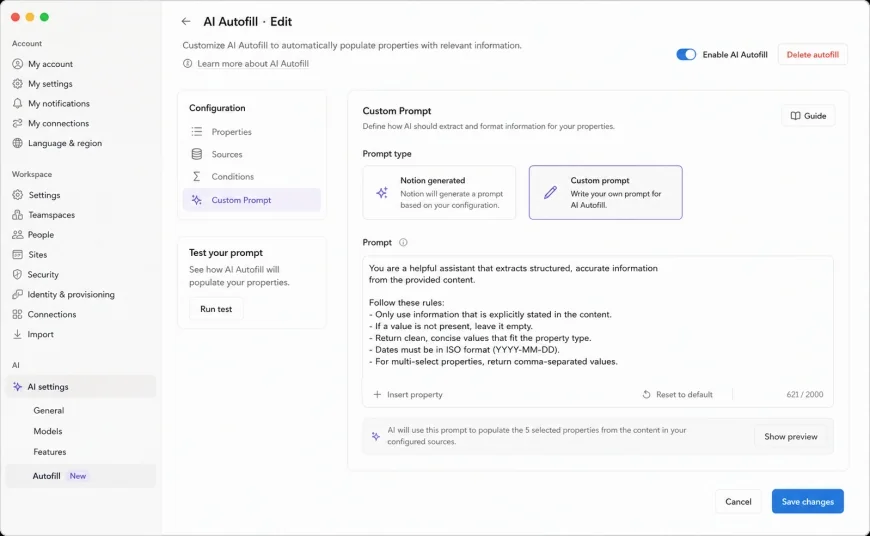 Figure 2: Configuring custom prompts inside Notion's database properties panel to enable background processing and automatic task generation.
However, this approach has its limits. In large enterprise databases with hundreds of rows, running heavy autofill prompts on every entry can quickly eat up your monthly performance limits or cause noticeable lag. It's best used for high-value, medium-sized databases like client project logs, weekly status updates, or onboarding queues rather than massive archive tables. For massive historical archives, manual triggers remain a more resource-efficient approach.
Limitations and Advanced Workarounds: The Expert's Lens
While marketing teams make AI automation sound flawless, anyone who has managed projects in the real world knows that forcing Notion to act like a dedicated database tool like Jira or Asana often hits a wall. Understanding these structural pain points is crucial if you want to avoid team frustration.
The Tyranny of Potential (Over-Customization)
Keep your setups simple. The biggest mistake is trying to connect every single meeting, task, prompt, and client profile into a giant master system. It sounds cool in theory, but the workspace becomes slow, intimidating, and painful to navigate. If a setup requires ten clicks just to document a quick phone call, your team will stop using it.
Automation Bugs & Trigger Reliability
Keep in mind that Notion's native automation buttons and triggers still experience occasional hiccups. A button configured to update status properties or trigger an AI block can sometimes lag or fail during high-traffic work hours. Because of this, avoid relying on them for critical compliance steps—always have a manual fallback or review step.
The "Build with AI" Fallacy
It's also worth noting that Notion’s "Build with AI" feature cannot actually build or edit complex database schemas, add new templates, or configure advanced relations for you. It's great for drafting text, but the structural heavy-lifting still has to be done manually by someone who understands database logic.
Who Should Avoid This?
If your team handles highly sensitive client data with strict regulatory compliance (like HIPAA or financial audits), you may want to avoid native AI integrations altogether due to external API processing rules. Furthermore, if you are managing a massive enterprise workspace with thousands of active database rows, you are likely to experience performance bottlenecks and trigger delays that disrupt your team's daily flow. For these heavy-duty scenarios, it's best to leave core task management to dedicated platforms like Jira, and use Notion AI strictly as an internal wiki and collaborative brainstorming hub.
The Reality of Notion AI Pricing and Licensing
Before you roll out these automated workflows to your entire organization, it is essential to understand the financial commitment. Notion AI is structured as an optional add-on available for all plans (including the free tier). The pricing is flat-rate, which protects you from the unpredictable API token billing associated with raw LLM deployments.
Currently, the add-on costs $8 per user, per month when billed annually, or $10 per user, per month on a month-to-month basis. However, there is a major catch that catches many IT procurement teams off guard: you must purchase an AI license for every member of your workspace. You cannot selectively buy seats for your writers or project managers while leaving the rest of the team on a standard plan. Because of this all-or-nothing model, scaling your prompt management system is the only way to ensure you get a solid return on this collective investment.
For larger companies, this seat-based billing can scale up quickly. Even so, when compared to the cost of buying separate subscriptions for transcription services, summarizing tools, and writing assistants, consolidating these needs into Notion usually results in a net savings for your overall software budget.
The Honest Trade-Offs
What We Love (Pros)
- In-Context Execution: The AI works directly where your text and tasks live, eliminating the need to constantly switch tabs.
- Automated Properties: Having database rows summarize or tag themselves in the background saves hours of manual data entry.
- Mobile Convenience: Using plain-text code blocks makes copying prompts on iOS and Android a simple, single-tap action.
- Predictable Costs: Flat-rate monthly pricing means no surprise bills from heavy usage.
The Pain Points (Cons)
- No Global Relations: The lack of cross-database "assign to" features makes scaling templates across independent databases a chore.
- Execution Lag: Native buttons and automated triggers can experience minor delays during peak working hours.
- Rigid Seat Requirements: The mandate to buy AI licenses for your entire workspace makes selective rollouts impossible.
- Scale Limits: High-volume, multi-row databases can hit processing delays when running bulk background updates.
Finding Your Ideal Setup
Your team's size and operational style should dictate how you build this system. If you are a solo freelancer or a small agency, a lightweight, manual-copy prompt vault is often the best fit. It keeps your workspace clean, fast, and completely free of extra seat licensing fees. For growing startups, setting up automated database properties to instantly summarize meeting logs and draft client deliverables is a massive force multiplier. However, enterprise-level teams with complex compliance rules and massive data volumes should keep their primary workflows in dedicated systems like Jira, using Notion AI purely for knowledge management and collaborative drafts.
Recommended Choices by Use Case
To get the most out of your Notion AI investment, align your setup with your primary day-to-day bottleneck:
- To Fix Information Silos: Deploy Notion AI Q&A. This gives your team an instant, conversational search assistant that indexes your entire workspace, saving hours spent digging through old folders.
- To Enforce Brand Consistency: Build a centralized Prompt Vault. Providing your writers and marketers with pre-vetted, easily accessible prompts prevents generic AI outputs and maintains your brand voice.
- To Streamline Weekly Operations: Set up AI Autofill Database Properties. Let the AI handle the tedious tasks of generating action items, translation drafts, and category tags the moment a new page is created.
Frequently Asked Questions
Does Notion AI use my private company data to train public models?
No. Notion maintains incredibly strict data privacy policies. Your workspace data is fully encrypted both in transit and at rest. More importantly, it is never used to train the public large language models hosted by partners like OpenAI or Anthropic.
Can I use my own OpenAI API key to avoid the subscription fee?
No, Notion does not support "Bring Your Own Key" (BYOK) integrations for its native AI tools. To access features like integrated page drafting, Q&A search, and automated database properties, you must subscribe to the official Notion AI add-on.
Can I purchase Notion AI seats for only a portion of my team?
Unfortunately, no. If you are on a paid plan (Plus, Business, or Enterprise), you must buy Notion AI licenses for all members of your workspace. If you only want a few specific team members to use AI, you would need to set up a separate, isolated workspace for them, which can make cross-team collaboration more difficult.