How to Migrate CRM Data Safely: The Ultimate Step-by-Step Guide
Learn how to migrate CRM data safely without losing your active leads. Discover real Reddit pitfalls, a step-by-step checklist, and pipeline security tips.
 Abir Bin Hasan
How to Migrate CRM Data Safely: The Ultimate Step-by-Step Guide
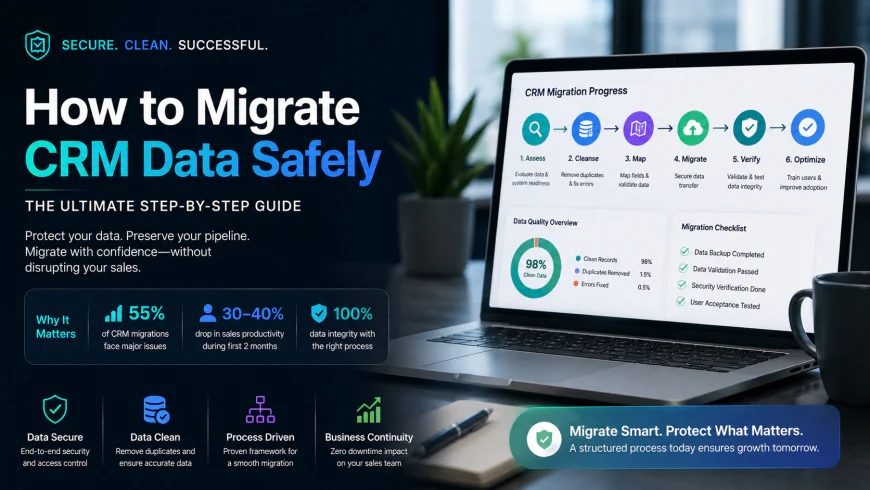
Industry data highlights a sobering reality: up to 55% of CRM migrations run into serious trouble, usually because users resist the new setup or the legacy database is full of cluttered records. Moving your active lead pipeline isn't just a technical chore; it is a critical phase where a sloppy transition can easily ding sales productivity by 30% to 40% during the first two months. To protect your active deals and keep the lights on, you need a realistic, secure plan for moving your customer records without stalling your sales momentum.
What this article helps you decide
This guide breaks down the choice between a quick, weekend "Big Bang" switch and a slower, 30-day phased migration. We will walk through spotting hidden field mismatches, setting up your custom field map, cleaning up old data before the import, and avoiding those frustrating dashboard errors that mess up your sales reports.
Analysis Methodology
This analysis relies on a thorough review of official platform documentation, developer forums, and direct discussions among database managers and CRM admins. The goal is to highlight real system limits and actual migration bottlenecks, rather than relying on promotional vendor guides. Benchmarks and workflows are cross-referenced with established industry standards, including the Cobalt Dynamics 365 framework.
Overview & Market Context: The Real Danger of Transitioning Sales Systems
Most guides on the web are published by CRM vendors, so they naturally make the transition sound like a breeze. They promise that uploading a quick CSV will magically reconstruct your entire sales funnel. In practice, moving an active database is rarely that clean. According to data from the TechnologyChecker.io SaaS Churn Report, unsuccessful migrations are a leading reason why teams abandon new CRMs within their first year.
Additionally, studies on adoption rates confirm that small-to-midsize businesses face a steep uphill battle with post-migration friction. If the new interface is too complex, sales reps often stop logging their calls and updating deals within three weeks of launch. When reps lose track of customer notes or struggle to update a lead's status, they usually revert to spreadsheets. Once that happens, your data integrity falls apart and sales velocity drops.
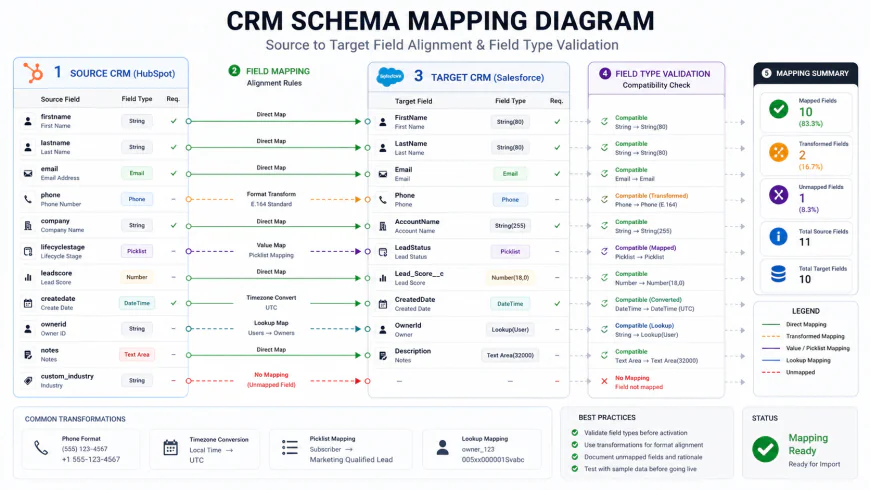 Figure 1: Visual representation of legacy field mapping to target platform parameters to avoid UI truncation.
Executing a successful system transition requires treating the migration like an engineering project. Blindly pushing data from one tool to another leads to broken workflows, cut-off customer histories, and glitched automated campaigns. Securing your database transfer means taking a disciplined, step-by-step approach to mapping fields, purging old files, and validating the final setup.
Step 1: The Pre-Migration Cleanup and Database Sanitization
The fundamental rule of database management is simple: garbage in, garbage out. Exporting a messy dataset from your old software and uploading it directly into the new one is a shortcut to technical headaches. Standard exporters will dump every broken, incomplete record into your new workspace, requiring hours of manual cleanup later.
Before hitting the export button, run a diagnostic scan of your current database to spot these common pain points:
- Duplicate Records: Scan for identical email addresses, duplicate company names with minor spelling tweaks, and overlapping phone numbers.
- Outdated Leads: Filter out bounced emails, cold accounts with zero activity over the last two years, and old internal test accounts to keep your database lean.
- Messy Formatting: Standardize phone formats (like E.164 syntax) and ensure consistent country names across all accounts.
- Corrupted Characters: Strip out system-generated code, broken HTML tags from old templates, and odd encoding errors.
If you're dealing with more than 10,000 records, manual checking isn't realistic. It is usually faster to run your CSVs through a deduplication script in Python (using Pandas) or use Excel's Power Query to clean up empty rows and standardize text fields before attempting any import.
Step 2: Constructing Your CRM Schema Mapping Template
Every CRM structures its data a bit differently. A field that works as a simple dropdown menu in HubSpot might need to be a customized multi-select list in Salesforce or Zoho. To avoid losing key details, you need a clear schema map that translates your old database structure into the new platform's language.
The process requires aligning every column in your old database with an identical field on the new platform. Use this layout to map your custom properties:
| Legacy Field Name | Legacy Data Type | Target Field Name | Target Data Type | Mapping Rules / Transformation Logic |
|---|---|---|---|---|
| Lead_ID | Alphanumeric String | Legacy_ID_Custom | Text (Read-Only) | Keep this field mapped directly to serve as a clean audit trail and make troubleshooting much easier down the road. |
| Creation_Date | MM/DD/YYYY | Created_At | ISO Date-Time (UTC) | Convert older date values to ISO 8601 format to prevent system-wide import failures. |
| Deal_Value | Text (with $ sign) | Amount | Decimal / Currency | Strip out currency symbols and parse solely as numeric decimals. |
| Customer_Notes | Multiline Text | Note_History | Rich Text / Large Object | Double-check character limits to avoid silent truncation of long customer notes. |
When you migrate leads between CRMs, watch out for mismatching validation rules. If your old system let sales reps type custom notes into a phone number field—like "555-0199 ext. 4"—but your new CRM enforces strict, clean numeric patterns, the platform might reject the entire row. You will need to scrub and normalize these values in your source files before you hit the import button.
💡 Expert Analysis & Experience: Pitfalls from the Field
A closer look at active discussions in tech spaces like r/CRM highlights real-world snags that automated tools completely ignore. Industry veterans warn that generic RPA (Robotic Process Automation) migration scripts hit a failure rate of around 12%. This usually happens because of odd date configurations or hidden line breaks buried in customer notes, causing the new CRM to silently cut off the text without flagging an error.
On top of that, B2B teams often hit a wall when legacy close-dates clash with the new platform’s native deal rules. When these dates shift, sales dashboards suddenly do not match your accounting records, creating a reporting nightmare that requires days of manual cleanup.
Step 3: Creating Complete Legacy Backups
Never start a migration without a bulletproof safety net. If a bulk script crashes halfway through or an API glitch starts overwriting active client records, you must have a clean rollback point. A smart backup strategy requires pulling full database dumps of every entity before you test a single mapping rule.
Your backup routine should include exporting:
- All contact, lead, and company profiles saved as raw CSV or SQL.
- Every opportunity, deal, and pipeline record (complete with their original, unique system IDs).
- Detailed history tables, including emails, logged calls, and completed tasks.
- Custom schema layouts and system metadata.
Keep these backup files stored in a secure, write-protected cloud folder. Never touch them during your tests or formatting runs to ensure they remain completely unaltered.
Step 4: Executing Delta Migrations & Managing Active Pipelines
IT leads always face the same dilemma: do you go with a single "Big Bang" launch or run a phased delta migration over several weeks? If you are managing more than 20,000 active records, shutting down the old system over a weekend is incredibly risky. Unplanned downtime can easily push past 18 hours, leaving your sales reps locked out of crucial deals on Monday morning.
For a smoother transition, a phased delta approach is almost always better. You migrate the bulk of your historical records first, then run small incremental syncs to capture new or modified leads. This lets your reps keep selling without missing a beat.
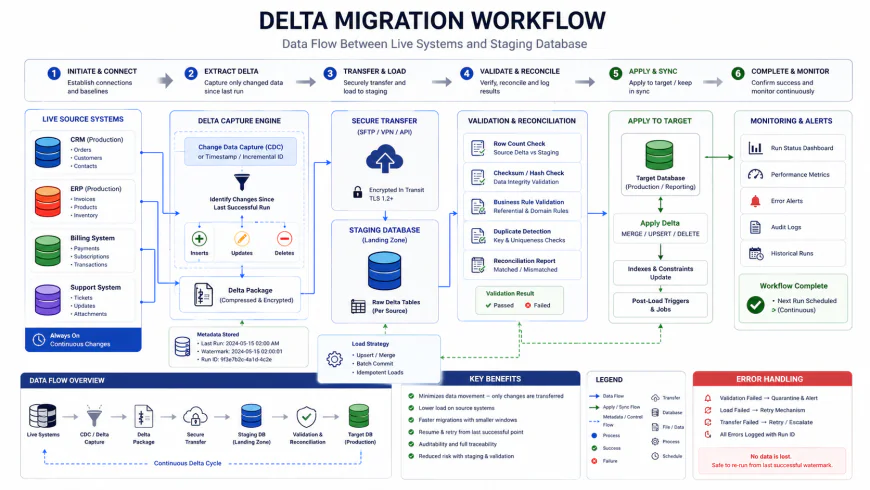 Figure 2: Delta migration schema showing how to transition live systems using intermediate staging databases.
To pull this off, you need a strict data freeze policy. Let your sales team know that historical records cannot be edited after a set date, and any new activities must be tracked separately as delta records to keep your databases aligned.
✅ Pro Tip: Restrain Your Automations at Launch
Don't try to roll out complex new workflows, automated alerts, and auto-assignments the second you launch. Keep these automations turned off during your initial data run. Only activate them after verifying that the base records are clean and accurate. This prevents your new system from accidentally triggering historical drip emails and spamming your best clients.
Step 5: Conducting Thorough User Acceptance Testing (UAT)
Once your test data is sitting in the new environment, it is time to run User Acceptance Testing (UAT). Don't just look at high-level summary dashboards; you need to examine individual records closely.
Put together a small testing team of your power users from the sales department. Have them verify these core details:
- Are contacts properly linked to their respective company accounts?
- Do the timeline logs show call notes in the correct chronological order?
- Are your custom drop-down fields displaying values exactly as expected?
- Can sales reps find and load their accounts without performance lag?
Fix any broken links or text issues discovered during UAT before you do the final database switch.
Step 6: Executing Pipeline Reconciliation and Financial Alignment
The last step of a clean migration is reconciling your pipeline. This verifies that your open opportunities, closed-won metrics, and sales projections match the old system. Mismatched close-date logic is the number-one reason executive dashboards display skewed numbers.
To fix this, export pipeline summaries from both systems and cross-check the overall numbers. If something does not add up, check your time zone settings, currency conversions, and stage-mapping rules.
Detailed Tool Evaluation and Strategic Approaches
When moving leads to a new platform, you have several options. Every approach balances setup time, control, and budget. Here is how the four main methods stack up:
1. Native Vendor Importers
Most modern CRMs offer built-in setup wizards designed to grab data from competitor tools. These work fine for simple setups, mapping basic fields like name, email, and phone number. However, they struggle with custom setups, multi-level notes, and complex relational databases. They are best for small teams with standard setups.
2. Mid-Market iPaaS Integrators (Make, Zapier, Workato)
Cloud platforms like Make or Zapier let you build custom webhooks to sync data in real time over a 30-day window. This is ideal for phased rollouts because your team can gradually get used to the new platform. The downside? High volume can quickly eat up your monthly task limits and trigger unexpected subscription costs.
3. Specialized Migration Software
Dedicated migration engines are built specifically for database shifts. They have advanced tools for mapping, validation, and data scrubbing. They work beautifully for large volumes but come with a steep learning curve and high licensing costs.
4. Custom Scripting & APIs (Python & SQL)
For large enterprises with highly customized systems, writing custom scripts is the safest path. Using Python libraries (like Pandas) and SQL queries gives you total control over how data is processed and validated before it hits the new CRM. It requires dedicated developers but guarantees the cleanest possible outcome.
| Migration Method | Setup Complexity | Downtime Risk | Data Volume Suitability | Best For |
|---|---|---|---|---|
| Native Import Wizards | Low (No-Code) | Medium (Big Bang reliance) | < 10k records | Small teams with standard, non-customized CRMs. |
| iPaaS Synced Channels (Make/Zapier) | Medium (Visual flows) | Very Low (Dual-sync enabled) | 10k - 50k records | Startups implementing phased delta migrations. |
| Specialized Migration Tools | High (Technical UI) | Low (Staged approaches) | 50k - 200k records | Mid-market companies migrating custom relational tables. |
| Custom API Scripting (Python/SDK) | Very High (Dev resources required) | Zero (Programmatic delta control) | > 200k records | Enterprises with complex, highly custom database logic. |
Practical Scenario: Migrating HubSpot Pipelines to Zoho CRM
Let's look at a real-world example: a B2B SaaS company moving its pipeline from HubSpot to Zoho CRM. The legacy HubSpot database holds more than 15,000 active contacts, and the sales team has spent years logging detailed call histories in multiline rich-text fields.
During a quick test import, the team discovered that longer notes were being cut off because Zoho's default text fields had smaller character limits than HubSpot’s. To fix this, they used Make to build webhooks that split notes longer than 2,000 characters into separate, dated logs linked to the same contact.
By running both platforms side-by-side for a month, they corrected inconsistent deal close dates before deprecating the old system—keeping their financial reporting perfectly aligned.
Pricing & Licensing Breakdown: The Hidden Double-Licensing Costs
Many teams forget to budget for double-licensing during a migration. To do a phased delta migration safely, you will need both platforms active for 14 to 30 days, meaning you will pay for two systems at once.
Make sure to budget for these other hidden expenses as well:
- API Call Volumes: Large data transfers can max out your daily API caps, requiring temporary plan upgrades.
- Scrubbing Tools: Third-party deduplication software adds to the total bill.
- Consulting Help: If you bring in an external CRM expert, expect to pay standard consulting rates ($150 to $300+ per hour).
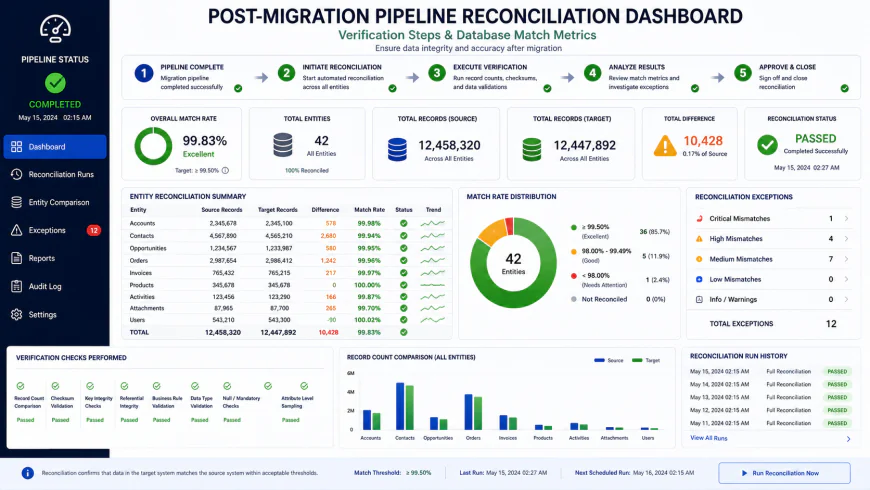 Figure 3: Dashboard verification comparing legacy and new CRM totals to ensure alignment.
Balanced Comparison: Choosing the Right Strategy
Phased Delta Migration (Recommended)
- Eliminates sales team downtime by keeping systems online.
- Allows you to identify and fix data mapping issues before the final cutover.
- Enables thorough testing and validation of active pipeline records.
Big Bang Cutover Migration (High Risk)
- High risk of sales disruption if importing errors occur during the weekend.
- Forces immediate adoption, which can lead to team friction and errors.
- Difficult to roll back if critical data issues are discovered post-launch.
Who should use what?
Use Native Wizards if: You are a small business with fewer than 5,000 standard records and do not use custom relational schemas. This is the fastest, most cost-effective path.
Use iPaaS Integrators (Make/Zapier) if: You are a growing mid-market business that wants to run a phased, 30-day delta transition to minimize sales team disruption.
Use Custom Scripting (Python/APIs) if: You are an enterprise organization with highly customized systems, massive databases, and strict security and validation requirements.
Recommended Choices by Purpose
There is no one-size-fits-all solution for CRM migrations. For most businesses, we recommend a phased delta migration supported by a clean, custom data mapping template. While this approach requires more planning and double-licensing overhead, it is the safest way to protect your active leads and maintain sales productivity.
Common Questions
1. Will migrating my CRM delete my historical customer emails?
Not if you plan for it. Most native integrations do not automatically migrate historical emails, but you can preserve them by exporting your engagement logs as raw CSV files or using specialized migration utilities.
2. How do I prevent duplicate records during import?
The best way to prevent duplicates is to clean and deduplicate your data in Excel or Python before importing it. You should also configure your new CRM's deduplication rules to block matching email addresses during import.
3. How long does a typical CRM migration take?
For small databases under 10k records, a migration can take 1 to 2 weeks. For larger enterprise setups, planning, testing, and executing a migration can take 2 to 6 months.
4. Should I migrate my archived and closed-lost leads?
We recommend leaving cold, archived, and unengaged leads behind. Transferring obsolete records only inflates your storage costs and clutters your new workspace. By focusing on active pipelines and clean, high-value historical accounts, you keep the new platform fast, lightweight, and highly adopted by your sales team from day one.
5. What happens if I hit the target CRM's daily API limits during import?
If you hit an API limit, your migration scripts or integration tools will freeze mid-run, which can leave you with a partially imported database. To avoid this, audit your target system's daily API limits ahead of time and ask your vendor for a temporary limit increase during your migration window.
Your Ultimate CRM Migration Checklist
To keep your transition structured, secure, and stress-free, use this step-by-step roadmap as your guiding framework:
- Back up everything: Run a complete, read-only SQL or CSV export of your entire legacy database before setting up any target mappings.
- Sanitize before you pack: Deduplicate records and purge bounced contacts, test entries, and ancient leads to keep your data volume lean and clean.
- Map your custom schema: Align all custom fields between your old and new systems, making sure field validation rules and data types match up perfectly.
- Build a data dictionary: Write down exactly where every piece of legacy information will live in the new platform's database structure.
- Run a test batch: Execute a pilot migration using a small sample (around 5% to 10% of your records) to flag formatting issues, field truncations, or API roadblocks.
- Audit the trial data: Check the test batch to ensure historical call logs, tasks, and account ownership links are fully intact and chronologically correct.
- Implement a database freeze: Switch your legacy CRM to "read-only" status during the final cutover window so team members don't add new data while you are importing.
- Execute the main transfer: Run your migration sequence during off-peak hours—such as over a weekend—to minimize pipeline disruption.
- Verify the counts: Double-check final record counts, reconcile active pipeline balances, and turn your critical third-party integrations back on.
- Plan a gradual phase-out: Keep your legacy CRM active in a read-only state for at least 30 days of live operation on the new system before canceling your subscription.
DIY vs. Professional CRM Migration: Which Path Is Right for You?
Deciding whether to tackle the database transition in-house or hire a certified specialist is one of the biggest choices you will make. Here is how the two approaches stack up:
| Approach | Pros | Cons |
|---|---|---|
| In-House / DIY Migration |
|
|
| Hiring a CRM Consultant |
|
|
Who Is This CRM Migration Guide For?
This blueprint was written for sales operations managers, IT directors, CRM administrators, and business analysts who need to manage complex data transitions without freezing daily sales momentum. Whether you are transitioning a fast-growing scaleup or restructuring a global enterprise tech stack, these strategies apply to migrations across all major platforms—including Salesforce, HubSpot, Zoho, and Microsoft Dynamics.
The Final Verdict
At its core, a successful CRM migration is less about the technology and more about business continuity. Transferring records from point A to point B is only as effective as the planning, cleanup, and validation that supports it. By setting up a dedicated staging sandbox, purging dead weight from your legacy database, and prioritizing user training from the start, you can eliminate post-launch chaos and set your sales organization up for immediate growth on your new platform.