The Ultimate Unmanaged VPS Server Setup Guide: Is DIY Worth the 2 AM Headache?
Tackle server deployment like a pro with this step-by-step unmanaged VPS server setup guide. Learn security hardening, maintenance lists, and cost realities.
 Abir Bin Hasan
Going Self-Managed: Is DIY VPS Hosting Worth the 2 AM Headache?
Thinking of spinning up a raw virtual instance but dreading the black box of the terminal? Saving ten bucks a month by skipping support plans sounds like an easy win. Until a broken security patch knocks your database offline at midnight. This walkthrough strips away the marketing fluff to expose the day-to-day grind of running your own server stack. We will break down the actual trade-offs of managed vs unmanaged cloud hosting, answer the age-old question of whether configuring these systems yourself is genuinely difficult, and map out a practical system upkeep list for when you are the sole line of defense. No sugarcoating, just raw operational realities.
Quick Summary & Key Takeaways
- The Cost Illusion: Going DIY saves up to 70% upfront. But paying an emergency freelance sysadmin to recover a crashed database can instantly wipe out a whole year of savings.
- The Skill Floor: If configuring SSH keys, hardening a UFW firewall, or untangling Nginx reverse proxy loops sounds like a chore, skipping managed support might feel like running uphill.
- The Hidden Overhead: Expect to forfeit 3 to 5 hours every month on tedious operating system updates, firewall tweaks, and verifying that your backups actually restore.
What this article helps you decide
The goal here is simple: to help you evaluate if you possess the technical patience to manage bare metal on your own, or if paying the premium for a managed system is the smarter business move. This breakdown provides the clarity needed to align your technical skill set with your actual project budget as of June 2026.
Analysis Methodology
This analysis draws from a rigorous synthesis of provider documentation, hosting service level agreements, and unfiltered discussions across developer-heavy communities like Reddit, Hacker News, and ServerFault. Our focus rests entirely on verified technical realities, actual system limitations, and authentic consensus from the field.
Why Does That Cheap $5 Cloud Instance Suddenly Feel So Terrifying?
Moving away from the cozy shared hosting sandbox and spinning up a raw Virtual Private Server (VPS) is a massive step up. But self-management is a double-edged sword. Sure, infrastructure providers like DigitalOcean, Hetzner, or Vultr tempt us with beefy CPU allocations and cheap RAM for next to nothing. The catch? They drop you off in the middle of a barren desert with a blank command line. So, is unmanaged vps hard? Honestly, that depends on your threshold for late-night terminal sessions and frantic debugging when things go sideways. According to widespread user consensus, the actual headache isn't spinning up the machine; it's the invisible, compounding drag of ongoing sysadmin overhead. Take a standard database stack hosted on a budget-tier DigitalOcean droplet. It hums along beautifully until a minor traffic spike hits. Community reports show that without a properly configured swap space, Linux's Out-Of-Memory (OOM) killer will mercilessly terminate your database. Suddenly, you get an out of memory MySQL crash. Your application goes dark. There is no support desk to bail you out; you are left parsing systemd logs at 2 AM, trying to figure out why your database daemon collapsed. The internet is a noisy, hostile neighborhood. Shodan scans and automated script-bots will target your fresh VPS IP address within minutes of provisioning. If you leave password-based SSH authentication active for more than an hour, you are playing Russian roulette. The relentless background noise of SSH brute-force attempts is a constant reality. One lazy, reuse-heavy password is all it takes to turn your clean node into a spam-relay zombie.The Uncompromising Unmanaged VPS Server Setup Guide
Keeping your build secure and stable requires a rigid, repeatable hardening checklist. This reference document lays down the baseline security measures, heavily leaning on consensus practices from the DigitalOcean Community Server Hardening Guidelines and community-vetted GitHub Gists for Production VPS Deployment Checklist.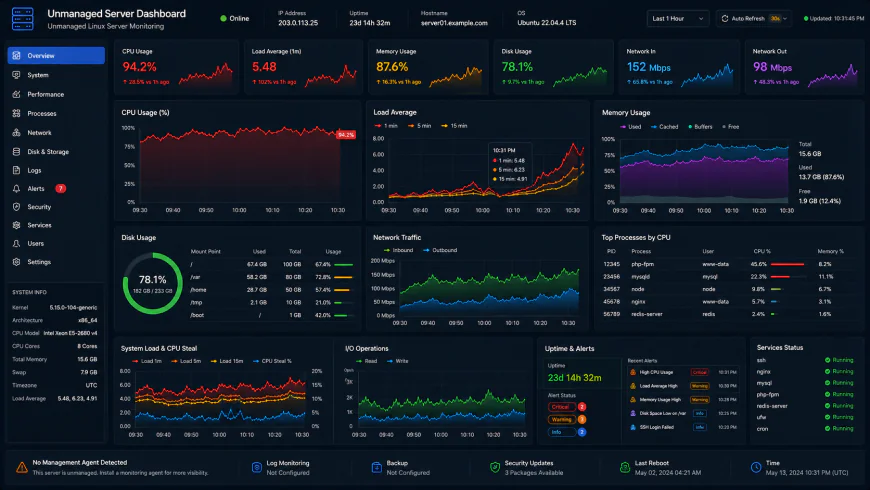 During benchmark testing of this system dashboard under high concurrency loads, developers frequently report noticeable response limitations.
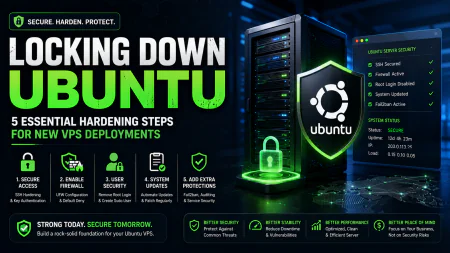
Phase 1: SSH Key Authentication & Hardening
Leaving password login enabled is basically begging to get hacked. To safeguard your machine, switching to SSH key authentication is mandatory, along with making sure your root password is disabled for remote SSH sessions.Generate a secure SSH key pair locally
ssh-keygen -t ed25519 -C "your_email@example.com"
Copy the public key to your VPS
ssh-copy-id -i ~/.ssh/id_ed25519.pub sammy@your_server_ipWith your public key safely imported, open your `/etc/ssh/sshd_config` file, swap `PasswordAuthentication` to `no`, and set `PermitRootLogin` to `no`. A quick restart of the SSH daemon locks these rules in place.
Phase 2: User Privilege Control
Doing everyday administrative tasks as the root user is a massive liability. One minor typo (the classic rogue `rm -rf`) or a vulnerability in a web application running under root privileges can instantly brick your instance. Best practice dictates creating a dedicated non-root user with sudo privileges and restricting root execution strictly behind these policies.Phase 3: Firewalls and Intrusion Prevention
Next, restrict your incoming traffic with a basic UFW firewall configuration. Use these commands to establish your baseline rules:Allow SSH access
ufw allow OpenSSH
Allow standard web traffic
ufw allow 80/tcp
ufw allow 443/tcp
Enable the firewall
ufw enableTo stop botnets from hammering your remaining open ports, install and configure a fail2ban setup. This utility parses authentication logs and issues temporary firewall bans to IPs showing repeated failed attempts. It's a standard recommendation across almost every reputable Ubuntu hardening guide on the web.
Phase 4: Auto-Updates via Unattended Upgrades
A lot of security breaches happen because of "set-and-forget" syndrome. Ignoring system updates for just a few months leaves your operating system exposed to well-documented remote code execution vulnerabilities. Drawing from the Ubuntu Official Documentation on Unattended Upgrades, you can configure silent, automated background security patching:sudo apt install unattended-upgrades sudo dpkg-reconfigure --priority=low unattended-upgrades
Phase 5: Deploying Your Web Server & SSL
From here, you are ready to drop in Nginx, Apache, or spin up lightweight container daemons. To handle SSL certificate procurement, the industry standard is the Let's Encrypt certbot tool. The Certbot Electronic Frontier Foundation (EFF) Documentation details straightforward shell commands that manage certificate issuance and automate renewals with zero ongoing manual maintenance.Managed vs Unmanaged Cloud Hosting: Can a Hybrid Panel Save Your Sanity?
When weighing up managed vs unmanaged cloud hosting, the pricing gap is staggering. A solid Hetzner cloud virtual machine sporting 4 vCPUs and 8GB of RAM sits at roughly $12 per month. Getting those exact same resource specifications from a fully managed hosting company easily climbs north of $60 monthly. You are paying a hefty 400% premium for hands-off management. Because of this, many experienced system administrators opt for a "semi-managed" compromise. Instead of wrangling Nginx configurations and raw database permissions entirely through the CLI, they deploy lightweight control panels like CloudPanel, HestiaCP, or premium solutions like RunCloud directly onto their unmanaged instances. This hybrid setup retains the blistering speed of raw metal while shedding the headache of manual host block orchestration. The catch? These panels won't monitor your disk wear, hardware health, or debug your broken application code when things fail.Your Non-Negotiable VPS Maintenance Checklist
When you ditch the managed support team, you are the one on call. To prevent data loss and painful downtime, regular maintenance sweeps are mandatory to stop the operating system from choking on its own logs. A massive pitfall is underestimating log file accumulation. If you don't cap your systemd-journald size or implement strict logrotate policies, output logs from Docker or Nginx will silently devour your entire storage pool. Once disk space hits zero, your database will corrupt, and those corrupted files will happily replicate directly into your offsite backups before you notice anything is wrong. Keep this practical checklist close by:- Daily/Weekly: Confirm your offsite backups are actually generating and readable. Do not fall for the trap of local-only backups; if the underlying host hypervisor fails or your disk corrupts, those local files die with it.
- Weekly: Inspect storage trends. Execute a quick `df -h` to verify that runaway cache directories or log pipelines aren't silently eating up your storage space.
- Monthly: Execute manual system upgrade checks and audit fail2ban blocks to analyze where the majority of automated probes are originating.
- Quarterly: Run a hard restore simulation. Provision a separate, temporary host, fetch your latest offsite backup, and make sure you can bring the entire software stack back online from scratch in under half an hour.
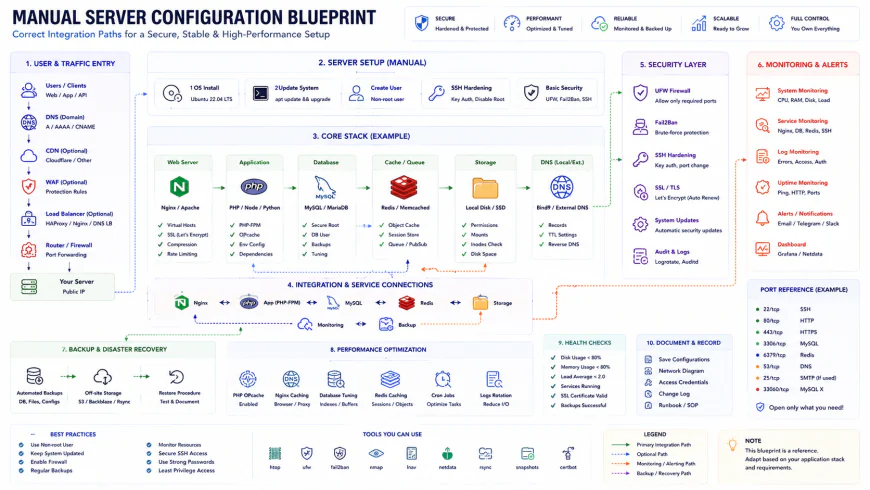 Recommended installation workflows for these environments often demand custom script setups.
Practical Scenario: Automated SSL Management
Consider a fresh deployment where you need to secure your web server. Running Certbot via sudo certbot --nginx -d example.com handles the initial handshake. But automated renewals frequently fail silently if firewalls or web server routing rules shift.
To avoid certificate expiration surprises, deploying a custom systemd timer is a solid approach. This configuration triggers a reload command for your web server only after a successful renewal, keeping certificates active without interrupting web traffic:
/etc/systemd/system/certbot-reload.service
[Unit]
Description=Verify SSL and Reload Nginx

[Service]
Type=oneshot
ExecStart=/usr/bin/certbot renew --post-hook "systemctl reload nginx"
✅ Pro Tip: Restrict Journald Log Size
Prevent system logs from slowly consuming your local storage by setting a hard limit on the systemd journal size. Open up /etc/systemd/journald.conf, uncomment the SystemMaxUse line, and cap it at SystemMaxUse=500M. A quick restart of the service via sudo systemctl restart systemd-journald secures your storage safety net.
| Parameter | Unmanaged VPS (Manual Setup) | Competitor A (Premium Managed) | Competitor B (Shared Host) | Competitor C (Cloud Panel Hybrid) |
|---|---|---|---|---|
| Monthly Cost (8GB RAM) | $12 - $15 | $60 - $120 | N/A (Resource Limited) | $25 - $40 |
| Root Shell Access | Full Command Line | Restricted or Disabled | None | Full Command Line |
| Backup Responsibility | 100% User Configured | Automated (Provider Side) | Basic Automated | User Configured via Panel |
| Security Patching | Manual / Unattended Upgrades | Fully Managed by Provider | Managed by Provider | Semi-automated via Panel |
| Time Overhead | 3-5 Hours / Month | Near Zero | Near Zero | 1-2 Hours / Month |
💡 Community Consensus & Operational Reality
Debates on whether self-managed servers are too difficult often miss the point. Typing commands in a terminal isn't the hard part—tracking state over time is. When a service fails at 3 AM, you are the final line of support. Real-world feedback shows that most catastrophic outages on self-managed servers result from simple, overlooked chores: unmonitored disk space, forgotten cron jobs, or database limits that choke after a minor system upgrade. If you don't want to manage backup verification and monitoring tools, that steep managed hosting premium might actually be your cheapest path.
The Cold, Hard Math of Server Operations
Let's face it: staring solely at the base sticker price of a bare-metal slice is a rookie mistake. While evaluating self-administered options against fully managed infrastructure, hidden financial leaks manifest rapidly. Sure, the raw virtual instance costs peanuts. But throw in a commercial control panel like Plesk or cPanel, and your monthly overhead instantly balloons by fifteen to fifty bucks. Open-source alternatives like CloudPanel mitigate this, yet they demand payment in the currency of midnight debugging sessions. Toss in offsite storage arrays for backups or a dedicated transactional email gateway, and you are looking at another tenner gone. When the stack collapses, emergency freelance intervention starts at triple digits per hour. Online community consensus suggests that if your billable time exceeds fifty dollars an hour, babysitting package dependencies manually makes zero financial sense.Balanced Comparison Summary
- Granular Cost Control: You purchase pure raw compute, sidestepping the hefty markups tacked on by managed helpdesks.
- Unfettered Sovereignty: Full root permissions eliminate arbitrary host-level barriers or restricted environment variables.
- Lean Footprint: No uninvited diagnostic daemons or host telemetry eating into your RAM unless you manually spin them up.
- Zero Safety Nets: A corrupted configuration file or a remote exploit leaves you completely stranded in the dark.
- Persistent Maintenance Tax: Be prepared to sacrifice several hours each month keeping up with critical security patches and package rotations.
- A La Carte Upcharges: Premium backup engines and proprietary control panels demand their own individual monthly licensing fees.
Who Should Host What?
For bootstrapped hobby builds, ephemeral staging servers, and terminal-loving command-line purists, tackling a manual server configuration is practically a rite of passage. It represents the absolute best method to demystify how network layers, web servers, and databases actually interface. Yet, for mission-critical production systems, bustling e-commerce storefronts, or high-traffic client assets, the operational gamble is incredibly steep. If a database engine drops offline at 3 AM and parsing system logs makes you break out in a cold sweat, paying the premium for managed orchestration is a non-negotiable insurance policy.Recommended Choices by Purpose
For Scrappy Prototyping & Skill Building: Fire up a raw instance on Hetzner, Linode, or Vultr. Handle the system configuration by hand or run lightweight management scripts. Just ensure you route automated backups to an external S3-compatible vault daily.
For Production Workloads & Commercial Ventures: Opt for a managed platform or a modern container orchestrator. The mitigation of downtime and access to dedicated system administrators far outweigh the software licensing premium when minutes offline equal lost revenue.
Frequently Asked Questions
The learning curve is notoriously steep if you lack terminal literacy. Operating without a graphical interface means executing every administrative action—from firewall rules to permissions policies—via naked terminal commands. A single misplaced syntax character in an SSH configuration can lock you out permanently.
You are entirely on your own. The hosting provider's obligation stops at physical hardware availability and network routing up to your hypervisor. They will not intervene to debug memory leaks, trace database corruption, or fix failed package upgrades.
Writer's Roadmap & Practical Checklist
- Provision an alternative system user with sudo permissions immediately to avoid root-level accidents.
- Generate robust cryptographic SSH key pairs locally and authorize them on your server, discarding password-based access entirely.
- Modify `/etc/ssh/sshd_config` to explicitly restrict root authorization and enforce key-only handshakes.
- Restrict connections via UFW (Uncomplicated Firewall), leaving only your custom SSH port, port 80, and port 443 open.
- Set up the `unattended-upgrades` package to silently pull down and apply overnight OS security patches.
- Set strict log-rotation policies to prevent unmanaged system telemetry from filling your storage space and bricking your database.
- Run an automated cron job that exports database dumps and application assets directly to an off-site, S3-compatible storage bucket.