Is Canva Magic Studio Worth It? A Brutally Honest Pro Review
Wondering if Canva Magic Studio is worth the Pro upgrade? We tested its AI tools head-to-head with Photoshop to give you a brutally honest verdict.
 Abir Bin Hasan
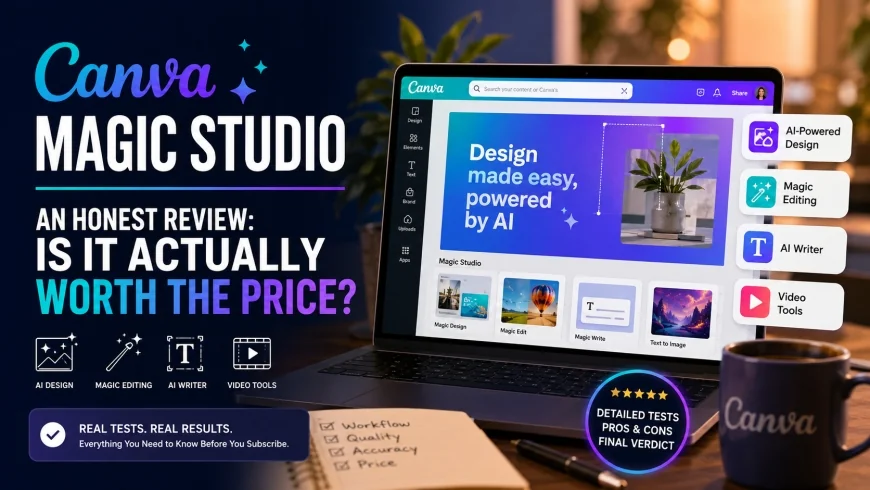
An Honest Review of Canva Magic Studio: Is It Actually Worth the Price?
The digital design landscape is shifting fast as generative AI finds its way into everyday tools. For solo creators, social media managers, and small business owners, deciding whether to step up to a paid Canva subscription is a major workflow choice. Specifically, does this collection of AI-driven utilities hold its own when stacked against classic design software and dedicated standalone generators?
What this review helps you decide
This breakdown looks at whether the AI tools bundled in Canva Pro justify the monthly subscription fee. We look at workflow efficiency, output quality, visual accuracy, and real costs. By the end, you should have a clear picture of whether to pay for the upgrade, stick with the free plan, or transition to dedicated professional design software.
Our Methodology
This analysis is built on a thorough review of public platform documentation, comparative benchmark tests from community designers, commercial terms of use, and real-world workflow feedback. The goal is to evaluate asset licensing, output consistency, and overall usability against standard industry tools.
The Shift Toward Web-Based Creative Automation
For a long time, online design software was mostly about dragging templates and tweaking basic vector layouts. Generative AI changed that dynamic quickly. Today, high-volume marketing teams need fast resizing, instant copy variations, and immediate image generation inside a single canvas. Consequently, a modern platform has to act as a creative assistant rather than just a layout grid.
Canva has integrated its machine-learning suite right into the main editor interface. For a detailed breakdown of how these elements interface with other design workflows, you can read the analysis over at zizme.com. Rather than echoing generic marketing copy, evaluating these features requires testing them against actual daily production needs.
The true value of any AI toolkit comes down to time. If a user spends more time correcting distorted details than generating clean assets, the system fails. But if it handles tedious design tasks reliably, it becomes a major timesaver. This analysis looks at where these features genuinely deliver and where they fall short of professional expectations.
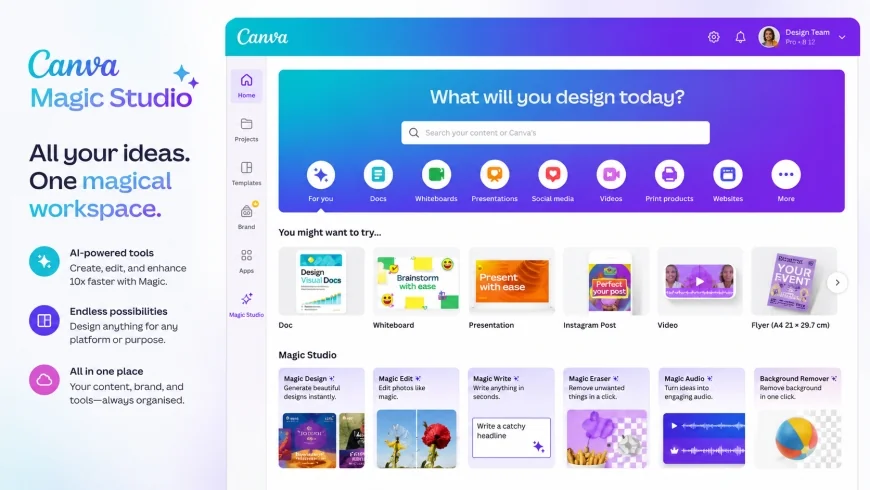 Figure 1: The centralized Canva Magic Studio dashboard, showing the integrated layout of generative design, editing, and writing tools.
Deconstructing the Core AI Tools
To see if the suite justifies its premium price tag, it is helpful to look at how individual tools perform under typical daily production stress.
1. Magic Switch: Cross-Channel Multi-Format Resizing
The Magic Switch tool addresses a common frustration for digital marketers: the need to manually adapt a single graphic for multiple social networks. It takes a master layout and reshapes it for various formats, converting an Instagram square into an email banner, slide deck, or vertical video canvas.
Working with this feature is straightforward. After opening a design, selecting "Magic Switch" from the top menu reveals a checklist of target dimensions. The system then automatically repositions, scales, and shifts text boxes and visual elements to fit the new aspect ratios.
💡 Expert Analysis & Workflow Reality
Practical workflow comparisons reveal a clear operational split. The Magic Switch function is a massive timesaver for cross-channel multi-format resizing, but companion tools like Magic Write can produce highly generic copy. While layout scaling is incredibly fast, the generated text usually needs a heavy human rewrite to carry any real brand voice.
Additionally, complex layouts with overlapping design components sometimes require manual adjustments after conversion. Bounding boxes can overlap, meaning a quick pass is usually necessary to fix spacing. Even with that caveat, it remains a far faster method than rebuilding graphics from scratch across projects.
2. Dream Lab & Magic Media: High-Speed Image Generation
The platform's image generation setup uses two distinct options: Magic Media and the advanced dream lab generator. Both allow users to generate graphics directly on the working canvas using text prompts.
Generating an image requires navigating to the "Apps" sidebar, opening the tool, typing a descriptive prompt, and choosing an artistic style—such as 3D render, watercolor, or photo. The engine then outputs four quick variations to choose from.
While the generation process is fast, designers will notice limits. For example, while the dream lab generator and Magic Media work well for quick conceptual drafts, they struggle to match Midjourney or Adobe Firefly in fine photorealistic detail, complex prompt execution, and high-resolution rendering. When dealing with human anatomy or integrated text, the outputs frequently require secondary cleanup.
This means if a business depends on high-end commercial imagery or precise vector artwork, these native generators might feel basic. However, for quick social media graphics, mood boards, and basic background textures, the speed is hard to fault.
3. Magic Expand & Magic Grab vs. Photoshop Generative Fill
Adjusting existing imagery without starting over is a major part of modern design. Magic Expand stretches the edges of an image to fill wider frames, while Magic Grab lets users select and shift specific subjects inside a flat photo as if they were separate layers.
To widen a photo, users click "Edit Photo," choose "Magic Expand," and drag the crop handles outward. The algorithm then fills in the margins based on the surrounding visual patterns.
Comparing these utilities to Adobe's Generative Fill highlights a clear difference in quality. Photoshop relies on highly trained Firefly models that analyze lighting, shadows, and camera depth with high accuracy. Canva’s counterpart is fast and convenient for web graphics, but it can struggle with complex patterns or leave soft, blurry transitions around filled areas. For high-resolution print assets, professional editors generally stick to Adobe's ecosystem.
4. Canva Background Remover: A Practical E-commerce Asset
The canva background remover remains one of the most useful features of the paid plan. It strips backgrounds in seconds, bypassing the need for manual pen-tool masking.
By selecting a photo on the canvas and clicking "BG Remover" under the photo editing options, the tool isolates the main subject within three seconds.
This automated function has changed workflows for independent online sellers. Many e-commerce store owners are choosing Canva over more complex desktop applications simply because standard cutout production takes seconds and requires no technical training. While tricky edges like hair or transparent glass can sometimes look a bit rough, the tool is incredibly efficient for standard product catalog work.
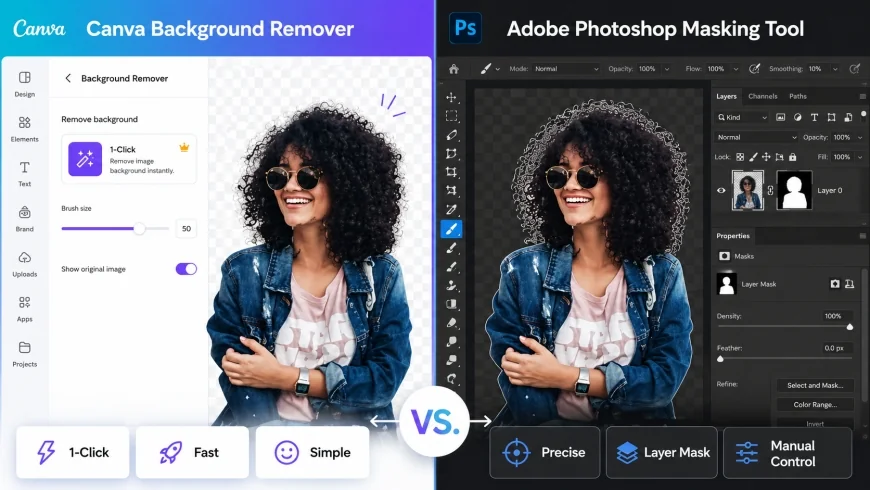 Figure 2: A comparative visualization showing the instant background removal process on an e-commerce product, highlighting edge detection performance.
5. Magic Write: Rapid Draft Copywriting
Magic Write serves as an on-canvas writing assistant, offering quick ways to expand, summarize, or rewrite headlines and body copy directly within presentations and documents.
Highlighting a text box and selecting the tool brings up options to change the tone, shorten copy, or generate alternative headlines. It is a handy way to brainstorm or quickly draft placeholder text.
However, the output is often formulaic. The copy usually carries a recognizable "AI style" that needs editing to sound genuinely human and brand-aligned. It serves well for getting over writer's block, but it does not replace a skilled editor or writer.
Canva AI vs. Adobe Photoshop: A Head-to-Head Comparison
While Adobe Photoshop remains the standard for pixel-level editing, web-based tools with built-in AI are causing many creators to rethink their software packages. The ongoing comparison between canva ai vs photoshop ai highlights different design philosophies.
| Feature / Metric | Canva Pro AI (Magic Studio) | Adobe Photoshop AI (Firefly) | Target Use Case Winner |
|---|---|---|---|
| Generation Engine | Dream Lab & Partnership Engines | Adobe Firefly Model Suite | Adobe Photoshop AI (Detail & Quality) |
| Background Removal Speed | Near-instant (1-click) | Select Subject / Manual Mask | Canva Pro (Speed & Simplicity) |
| Canvas Expansion | Magic Expand (Fast, simplified) | Generative Fill (Highly detailed) | Adobe Photoshop AI (Realism) |
| Manual Vector Control | Basic layout adjustments | Deep vector and pixel manipulation | Adobe Photoshop AI (Control) |
| Learning Curve | Very gentle (Intuitive) | Steep (Requires training) | Canva Pro (Accessibility) |
| Pricing Structure | Flat-rate monthly subscription | Tiered Creative Cloud plans | Canva Pro (Value for non-designers) |
As the comparison reveals, choosing between canva ai vs adobe photoshop is less about finding a superior tool and more about identifying your creative needs. Photoshop delivers depth and precise manual editing, while Canva prioritizes turnaround time and straightforward workflows.
For example, if a team needs to produce Fifty social media variations of an ad template in an afternoon, working inside Photoshop can feel slow and cumbersome. Conversely, professional vector designers or brand directors who need meticulous control over kerning, custom vector nodes, and absolute color management will find Canva's restrictive settings frustrating.
Similarly, the choice of adobe firefly vs canva often comes down to legal peace of mind and output scale. Adobe trains Firefly on licensed and public domain assets, offering commercial indemnity options for corporate teams. Canva has safety policies too, but its image output is designed for digital layouts rather than high-resolution commercial print files.
Practical Scenario
Consider a freelance social media manager handling weekly updates for multiple clients. Using Canva, they can generate a background, clean up a product shot, rewrite a caption, and resize the layout for three platforms in fifteen minutes. Attempting the same process in Photoshop means managing layers, manual artboards, and complex exports, making Canva the more efficient tool for high-volume digital workflows.
How to Use Magic Studio to Build a Social Media Campaign (Step-by-Step)
This is how these tools look when applied to a practical, step-by-step design workflow for a multi-platform marketing push.
Step 1: Create a Master Design with Magic Design
To start, search for the campaign topic in the main search bar, using a query like "modern organic skincare launch." The canva magic design engine will display several layout choices with styles, fonts, and stock assets already applied. Select one to open it in the editor.
Step 2: Generate Product Visuals in Dream Lab
To swap out the template's placeholder image with something custom, open "Dream Lab" in the left-hand apps menu. Enter a prompt such as: "Minimalist glass bottle on a smooth wet stone, natural soft morning light, green leaves in the background." Choose the 'Product Photography' style and generate. Once the generation is complete, drag the image into your template frame.
Step 3: Adjust the Messaging Using Magic Write
Click on the main heading text, open "Magic Write," and select "Rewrite" or type a prompt like "Write a natural, minimalist skincare tagline." Select the option that matches the brand voice and make any manual adjustments needed to make it fit perfectly.
Step 4: Isolate the Product Image
If you prefer to show a clean cutout of a product rather than a full background, highlight the photo, click "Edit Photo," and select "BG Remover." The background disappears in seconds. You can then add a drop shadow from the effects panel to give the product a grounded look on the canvas.
✅ Pro Tip
When using the automated background remover on transparent objects or intricate edges (like fine details or foliage), check the edges closely. If the AI removes a translucent reflection, use the manual "Restore" brush to paint back those faint details. This simple step keeps product cutouts looking professional.
Step 5: Resize Across Channels with Magic Switch
With the master asset ready, click "Magic Switch" in the top bar. Select the target sizes—such as "Facebook Post" and "Pinterest Pin"—and click resize. The system generates separate, resized layouts. A quick manual check to adjust text placement on the new formats completes the process.
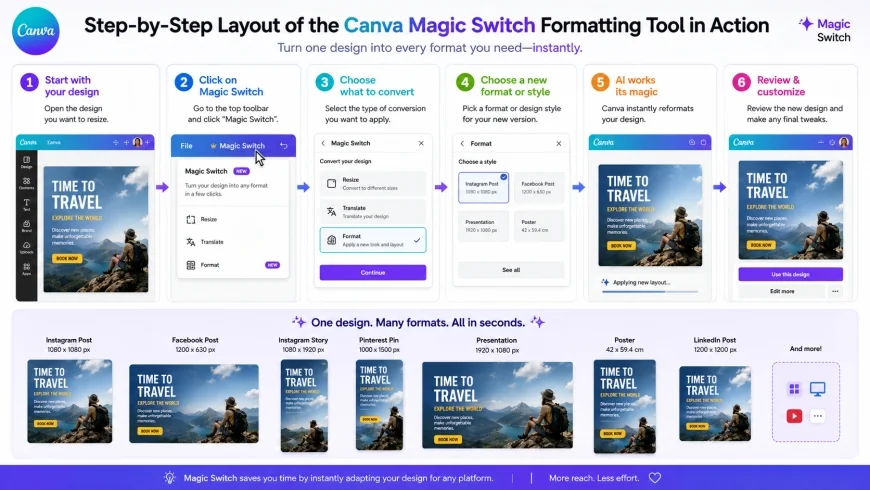 Figure 3: The multi-format resizing workflow, illustrating how a single master graphic is simultaneously adapted for various screen aspect ratios.
Key Limitations: Who Should Skip Canva Pro?
Despite the high-speed utility of these features, this package is not a perfect fit for every workflow, and several limitations should be considered before subscribing:
- UI Sluggishness on Large Files: When working on multi-page files, presentations with dozens of slides, or high-resolution graphics, the browser-based interface can lag, freeze, or take a long time to render adjustments.
- Strict Monthly AI Credits: Generative features like Dream Lab and Magic Media operate on a monthly credit system. High-volume creators who run multiple generations a day can easily burn through their allowance before the billing cycle resets.
- Pricing Hikes on Team Renewals: While the individual plan is reasonably priced, team subscriptions can see significant price increases upon renewal, especially when adding multiple seats. This makes scaling the platform expensive for growing agencies.
- Rigid Export Options: Exporting designs as vector files (such as PDFs or SVGs) often results in flattened layers, shifted fonts, or broken paths. This makes it difficult to pass Canva files off to print shops or external professional editors who require native Adobe files.
Pricing, Value, and Licensing: Is It Worth the Money?
To evaluate if the upgrade makes sense, we have to look at the canva pro pricing value relative to daily design needs. Many users ask: should i buy canva pro for ai, or can the free plan suffice?
The free tier offers access to basic templates and layout tools, but locks away the majority of Magic Studio features. Pro subscribers get access to the background remover, Magic Switch, Magic Expand, and a steady allotment of monthly generation credits.
For independent creators, freelancers, and small brands, the monthly price of Pro is easily offset by the time saved. If a workflow involves constant asset cleanup, layout resizing, and sourcing stock photography, the utility pays for itself. However, for occasional, low-volume hobbyists who only need to build a single flyer now and then, the free version is more than enough.
Balanced Comparison
What Makes It Worth Buying
- Fast Workflows: Tools like background removal and multi-format resizing work faster than almost any desktop equivalent.
- Simple Learning Curve: The interface is highly visual and easy to navigate, requiring no prior design background.
- All-in-One Dashboard: Writing, image generation, asset searching, and publishing are handled inside a single browser tab.
- Deep Asset Library: Subscription includes access to millions of premium stock photos, graphics, videos, and fonts.
Where It Falls Short
- Boilerplate AI Text: Magic Write copy tends to sound generic and require significant editing to carry a natural tone.
- Lack of Fine Vector Editing: Advanced designers will struggle with the lack of direct vector path editing and custom anchor points.
- Occasional Edge Issues: The automated background cutout can struggle with glass, transparent plastics, or fine hair.
- Limited Print Output Settings: The generative features lack the high-resolution output controls needed for premium print projects.
The Final Verdict: Who Should Buy Canva Pro?
When analyzing if a canva pro ai review justifies the monthly expense, the answer comes down to your production style, speed requirements, and technical design background.
Who should use what?
Small Business Owners & Social Managers: Canva Pro is a clear fit. The speed of background removal, instant resizing, and pre-formatted layout systems save hours of manual design labor, making it a highly practical business expense.
Professional Illustrators & Design Specialists: Photoshop and the Creative Cloud remain essential. Canva’s simplified layout tools cannot deliver the pixel-level accuracy, advanced color profiling, and deep vector editing required for complex print and brand identity production.
Recommended Choices by Purpose
If your goal is Speed and Streamlined Production, Canva Pro is the clear choice. It requires almost no training and lets you build social graphics and web collateral very quickly.
If your goal is Total Creative Freedom and Precise Control, Adobe Photoshop remains the industry standard. It is the necessary choice for precise image composition, high-resolution editing, and advanced graphic assets.
Common Questions
Is Canva Magic Studio worth paying for if I already use ChatGPT?
Yes, because Canva's AI tools are built directly into your active design canvas. While ChatGPT can draft text or generate images via DALL-E, it cannot format your designs, automatically clean up image backgrounds, or map layouts to multiple social dimensions with a single click.
Can I use Canva's AI-generated images for commercial products?
Generally, yes, but you should review Canva's commercial guidelines. While they offer protection and use rights for designs created on the platform, you typically cannot trademark or claim exclusive ownership of assets generated purely from AI text prompts.
How does Canva's Dream Lab compare to Midjourney?
Midjourney is significantly better for realistic lighting, rich detail, and styling variations, but it operates through Discord and has a steeper learning curve. Canva's Dream Lab is built directly into your layout board, prioritizing speed and integration over extreme visual depth.
Is the Canva Background Remover accurate enough for high-end product photography?
It works incredibly well for digital store updates, social posts, and standard product grids. For large-scale print ads or products with complex transparent packaging, you will still need to manually refine the edges using Photoshop's advanced masking tools.
Practical Action Checklist
To help you decide if upgrading is the right choice for your business, consider this quick evaluation process:
- Determine your monthly design budget and graphic volume.
- Decide if you require high-resolution print files or quick digital layouts.
- Use a 30-day free trial of Pro to test the background remover and Dream Lab on your own product shots.
- Check the quality of background removal on items with complex or translucent edges.
- Test Magic Write against your existing brand voice to see if it speeds up your copywriting process.