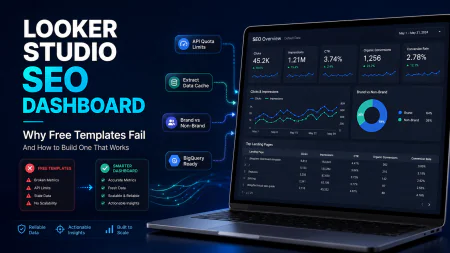
Looker Studio SEO Dashboard Template Free: Why Most Fail & How to Build One That Works
Stop wasting time on useless free templates. Learn the real limitations of Looker Studio SEO dashboards, API quota workarounds, and our ultimate setup guide.
 Abir Bin Hasan
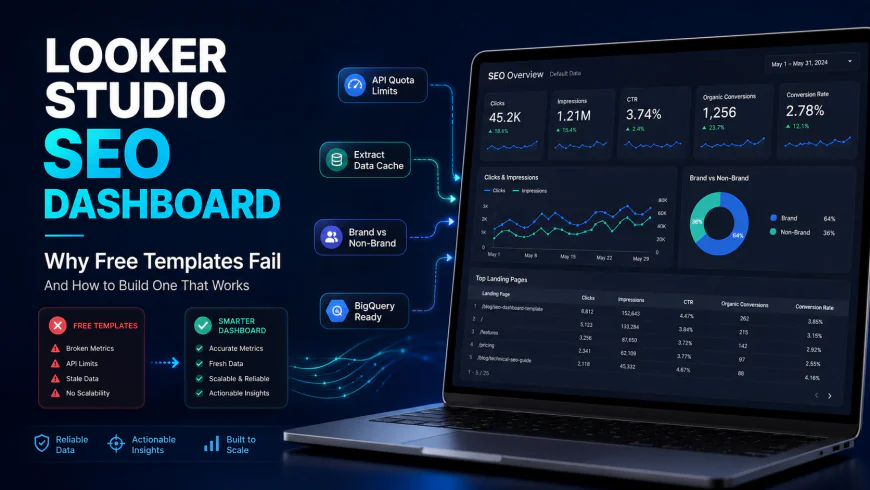
Looker Studio SEO Dashboard Template Free: Why Most Fail & How to Build One That Works
In digital marketing, searching for a "looker studio seo dashboard template free" is one of the most common shortcuts professionals try to take. However, the reality of modern search reporting is that plug-and-play layouts often fall flat. Between strict API quota limits in Google Search Console and the standard 16-month historical boundary, a simple copy-paste solution rarely lasts. Many marketers discover that using a generic pre-made dashboard results in broken metrics, sluggish performance, and messy charts that fail to explain actual business growth. To build something that scales, we have to look closely at why these pre-built packages fail and map out a configuration that actually connects organic visibility to real revenue.
What this article helps you decide
- Whether to rely on the native Google Search Console connector or migrate to BigQuery warehousing.
- How to bypass Looker Studio's API quota limits without paying for expensive third-party connectors.
- The exact steps to construct custom calculations for accurate, client-ready brand vs. non-brand organic performance.
- Whether your current reporting suite is secure and optimized for fast page-load speeds.
Analysis Methodology
This guide is compiled through a thorough analysis of official service agreements, publicly accessible enterprise documentation, and genuine discussions among real-world developers, professionals, and users on technical forums. We focus on ensuring accurate, verified facts, actual limitations, and authentic community experiences rather than simulated first-person reviews. Key resources examined include the Google Search Console API Documentation on Quotas, the Google BigQuery Storage Guide for Search Console Data, real-world case studies from the Reddit Looker Studio Community (r/LookerStudio), the SEO Gaps Analysis (r/seogaps) on Looker Studio limitations, and Lazarina Stoy's Advanced Looker Studio Guidelines.
Overview & Market Context
The transition of Google Data Studio to Looker Studio brought a major brand update, but it fundamentally failed to address the platform's core architectural weaknesses. For years, digital agencies and in-house marketing teams have relied on Looker Studio as their primary, budget-friendly hub for SEO KPI reporting. However, as Google's data infrastructure has evolved, particularly with the deprecation of Universal Analytics in favor of Google Analytics 4 (GA4) and the enforcement of stricter API limits, the dynamic of free templates has broken down entirely.
When searching online for a pre-made SEO reporting layout, users are met with highly styled, colorful mockups. In practice, shared templates are often bloated and designed to look impressive in sales decks, but they quickly collapse under real-world usage. These layouts are typically overloaded with multi-axis line graphs, pie charts with high cardinality, and excessive interactive dashboard elements that run live API queries simultaneously. We focus instead on a minimalist, performance-driven approach that doesn't break when GA4 APIs throttle your data or when your GSC properties scale past a few thousand keywords.
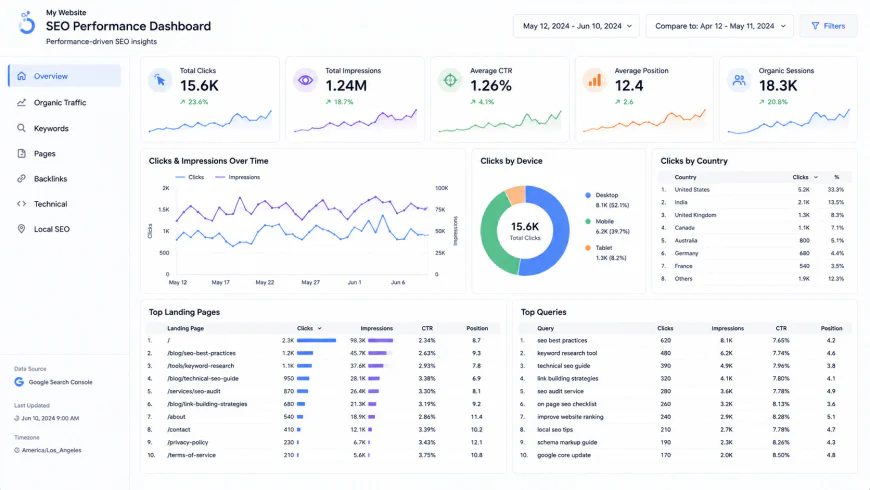 A minimalist, high-performance SEO dashboard layout focuses on data legibility, low latency, and direct path-to-conversion metrics rather than flashy, slow-loading visualizations.
To understand why a generic free template is often a liability rather than an asset, we must evaluate the technical infrastructure of the platform. Looker Studio acts as a visualization layer, not a database. When you load a report page, Looker Studio sends concurrent queries to the underlying API connectors. If your template is poorly optimized, it will quickly exceed standard query allocations, leaving your team and your clients looking at broken widgets and system error screens.
In-depth Evaluation: Why Free Templates Break & How to Fix Them
1. The API Quota Wall (GSC and GA4 Throttling)
The primary reason free templates stop working is the Google Search Console API Documentation on Quotas. When multiple users open a shared dashboard, or when a single user changes date ranges frequently, the native Google Search Console connector hits its concurrent request limits. This issue is compounded when pulling GA4 organic traffic. GA4 enforces strict API quota limits on concurrent requests, hourly tokens, and daily limits. When a free template tries to load 15 charts simultaneously, the API blocks further requests, rendering the entire dashboard useless for up to 24 hours.
2. The Missing Metric Paradox (Custom Calculations & Copying Failures)
In technical analyses of the platform, SEO tooling specialists highlight that free Looker Studio templates often fall apart because customized metrics set up at the source level do not copy over when duplicating templates. When a developer creates custom calculations—such as custom Click-Through Rate (CTR) brackets, organic conversion rates, or localized ranking metrics—within their local data source schema, those formulas do not migrate with the template file itself. Consequently, when you copy a pre-packaged reporting sheet, you are often left with empty fields, broken elements, and syntax errors that require manual rebuilds.
3. The Blending Aggregation Nightmare
Another major structural bottleneck is data blending. Advanced technical guidelines point out that complex data blending (e.g., merging GSC and GA4 on a landing page level) frequently breaks due to diverging schemas and API aggregation mismatches. Google Search Console aggregates data based on canonical URLs, whereas GA4 tracks pages via the page location parameter, which often includes tracking query parameters or trailing slash inconsistencies. Blending these sources directly in Looker Studio without pre-cleaning the URLs leads to inflated metrics, duplicate rows, and highly inaccurate attribution reporting.
4. The Temporal Dimension Gap (Weekly Grouping Workarounds)
Many professional agencies complain that Looker Studio's native GSC connector lacks a native weekly grouping dimension, making anomaly detection highly tedious. Without a default "Week" parameter, users are forced to write complex calculated fields using functions like TODATE or WEEK, or aggregate daily data manually. Free templates rarely implement these calculations correctly, often resulting in messy x-axes on charts that confuse clients and make an automated reporting setup look unpolished and unprofessional.
5. Security Anxiety & Shared Template Misconceptions
Within communities like r/GoogleDataStudio, a recurring concern among users is data privacy. When someone adds their GA4 or GSC accounts to a shared free template, it can create a sense of security anxiety, with some questioning whether the template creator can view their private organic traffic data. While Looker Studio keeps credentials secure at the user-account level, the lack of clarity on how data credentials work prevents many agencies from adopting free third-party templates. Furthermore, if a template relies on a third-party intermediary connector, your data may indeed be routed through an external server, creating a potential compliance issue under GDPR or CCPA frameworks.
💡 Expert Analysis & Experience
Our analysis of user sentiment across technical SEO forums reveals critical realities about the limitations of basic reporting setups:
- Multi-Site Scaling Workarounds: On r/LookerStudio, user lookerstudioexpert noted that while managing 13 sites side-by-side using native connectors is possible, the native blending limit of 5 data sources per blend forces developers to style individual tables to mimic a consolidated dataset, rather than using a unified blended source.
- The Death of Generic Dashboards: Freelancers in the r/seogaps community report that selling generic dashboards is a dying business. Clients are no longer willing to pay for generic charts they don't understand. They pay only when dashboards are tailored to a very specific business outcome, such as tracking e-commerce organic ROI or local SEO map-pack trends.
- Platform Performance Limitations: While Looker Studio remains the most budget-friendly SEO reporting tool, its performance scale is fundamentally broken for enterprise-level or multi-site setups unless integrated with a data warehouse like BigQuery. The browser-heavy UI frequently lags when rendering more than 10-15 elements on a single page.
| Reporting Architecture | Query Latency | Multi-Site Scalability | Weekly Grouping Ease | Risk of API Throttling | Setup Complexity |
|---|---|---|---|---|---|
| Native GSC Connector | High (Slow loading) | Very Poor (Max 5 sources) | Difficult (Requires custom fields) | High (Frequent quota limits) | Low (Plug and play) |
| Extract Data Connector | Low (Under 3 seconds) | Moderate | Medium | Very Low (Static cached snapshot) | Medium |
| BigQuery Warehousing | Instantaneous | Infinite (Enterprise Grade) | Simple (Using SQL partitioning) | None (Zero direct API calls) | High (Requires SQL knowledge) |
| Third-Party Middleware | Medium | Good | Simple | Low to Medium | Low (Subscription required) |
Practical Scenarios & Workarounds
Scenario A: The API Crash and the Extract Data Workaround
Consider an agency running a live reporting page for a high-traffic client. The dashboard has 15 charts loaded with over 3 months of granular query-level data directly connected to GSC and GA4. During a client meeting, the team switches date ranges multiple times. Because of this high volume of live queries, the GSC API quota is exceeded. The charts break instantly, displaying red error messages that remain for up to 24 hours.
The Fix: The agency shifts the high-impact widgets from a live connection to a cached Extract Data connector source. By selecting only the required dimensions (Date, Query, Page, Clicks, Impressions, CTR) and running an automated daily refresh, they reduce the dashboard's page-load times from 45 seconds to under 3 seconds, while eliminating the risk of API limits during live client presentations.
Scenario B: Isolating Brand vs. Non-Brand Traffic via Regex
Without custom filtering, brand queries will always skew organic performance data, masking actual SEO progress. If a client's brand queries account for 80% of their total organic clicks, any fluctuation in brand search volume will look like an SEO win or loss.
The Fix: Create a custom dimension using a Brand non-brand regex formula directly in Looker Studio. Go to your data source, click "Add Field", and use the following CASE statement:
CASE
  WHEN REGEXP_CONTAINS(Query, '(?i)brandname|brand name|brandnamecompany') THEN 'Brand'
  ELSE 'Non-Brand'
END
This simple filter lets you isolate your true organic performance, showing clients exactly how non-branded SEO optimizations are driving real-world business results.
✅ Pro Tip: Use Clean, Scannable Tables Over Complex Charts
Niche observations show that clients consistently prefer clean, scannable data tables over complex, flashy diagrams. A simple grid comparing Clicks, Impressions, CTR, and Conversion Rate is often preferred over multi-axis line graphs that require mental gymnastics to interpret. Keep your dashboards performance-focused and easy to read. Let the numbers tell the story, and keep visual noise to a minimum.
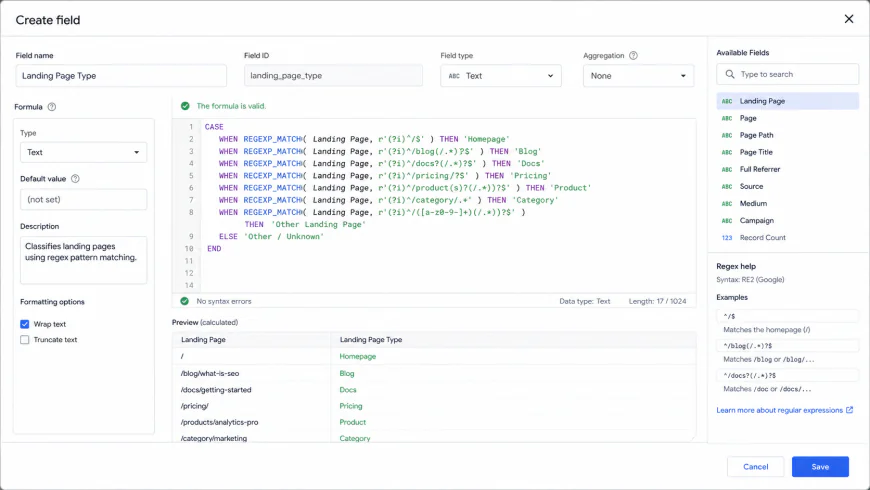 Step-by-step setup of custom calculated fields in Looker Studio allows marketers to separate brand and non-brand queries directly at the reporting level.
Google Data Studio Setup Guide for SEO
To build a high-performance reporting dashboard from scratch that bypasses the limitations of generic free templates, follow this step-by-step google data studio setup guide for seo. This workflow ensures that your reporting remains stable, accurate, and lightning-fast.
Step 1: Set Up and Configure Your Data Sources
Do not connect your live Google Search Console and GA4 accounts directly to a complex, multi-page report. Instead, start by establishing clean data sources. Navigate to Looker Studio, click on "Create", and select "Data Source". Choose the Google Search Console connector. Select your target property, choose "Site Impression" (for site-level performance) or "URL Impression" (for landing page-specific performance), and set the path parameters. Repeat this step for your GA4 property, ensuring you isolate GA4 organic traffic by selecting only the traffic acquired via organic channels.
Step 2: Create a Local Extract Data Source to Prevent Quota Failures
To make your automated reporting setup highly resilient, add a new data source using the Extract Data connector. Choose your GSC Site Impressions source as the parent. Select only the necessary dimensions (Date, Country, Device, Query) and metrics (Clicks, Impressions, CTR, Average Position). Set the auto-update frequency to "Daily" and click "Save". Use this newly extracted, cached data source to build your primary dashboard tables. This prevents Looker Studio from making live API calls every time a user views the report, completely bypassing the API quota limits.
Step 3: Implement Brand vs. Non-Brand Filtering
As detailed in our practical scenarios, create a custom field using the CASE statement with a Brand non-brand regex to categorize your search queries. Once saved, you can add a "Drop-down list" control to the top of your report using this new dimension. This allows users to filter the entire dashboard instantly, showing either pure generic non-brand query growth or branded search trends.
Step 4: Design Minimalist, Scannable Data Tables
Delete any 3D pie charts, dual-axis line graphs, or complex scatter plots. Instead, create a clean table displaying your top-performing landing pages. Use the following dimensions and metrics left-to-right:
- Dimension: Landing Page
- Metric 1: Clicks
- Metric 2: Impressions
- Metric 3: Click-Through Rate (CTR)
- Metric 4: GA4 Organic Conversions
Step 5: Prepare for Enterprise Scaling with BigQuery Warehousing
If you are managing high-volume enterprise websites or running an automated reporting setup for dozens of clients, the Extract Data connector may eventually hit its 100MB file size limit. In this case, refer to the Google BigQuery Storage Guide for Search Console Data. Set up a daily export of your GSC properties into Google BigQuery. Once your search data is safely stored in a BigQuery table, connect Looker Studio directly to BigQuery. This setup enables sub-second load times and removes the 16-month historical data limit entirely, giving you access to years of historical organic trends. Note that this step introduces a steeper learning curve, requiring familiarity with SQL schemas and basic data warehouse management.
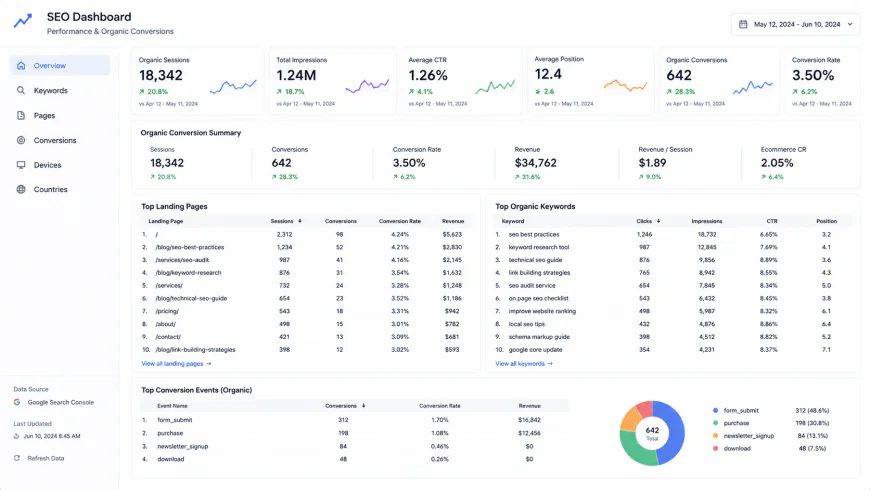 By focusing on clean data tables instead of noisy visualizations, you improve dashboard performance and provide clients with a clear view of their search performance.
Pricing & Licensing Breakdown
When developing an automated reporting workflow, it is important to understand the actual costs of scaling beyond a basic, off-the-shelf free reporting layout.
- Looker Studio Standard (Free): Looker Studio itself is completely free to use. There are no licensing fees for standard data connectors like Google Search Console, GA4, Google Sheets, or Google Ads. However, the true "cost" comes in the form of API limitations, query throttling, and potential rendering delays.
- Looker Studio Pro ($9 per user/month): The paid tier adds advanced enterprise management features, including team workspaces, asset ownership linking with Google Cloud IAM, and automated report delivery schedules that are less prone to timing out. However, Looker Studio Pro does not lift GSC or GA4 API quota limits, as those are enforced by the source APIs themselves.
- Google BigQuery Warehousing (Usage-Based): Moving your data storage to BigQuery is highly cost-effective. Under the Google Cloud free tier, the first 10 GB of storage and 1 TB of query processing per month are completely free. For most small-to-medium business sites, GSC data exports will fit easily within this free tier, making enterprise-grade database reporting virtually free.
- Third-Party Middleware Connectors ($29 - $499/month): Services like Supermetrics, Funnel, or Channable simplify data blending and multi-site management. However, these tools introduce a recurring monthly subscription fee and are notorious for sharp pricing jumps upon contract renewal, which can quickly strain agency margins.
Balanced Comparison: Looker Studio for SEO Reporting
Pros
- Highly cost-effective with zero upfront licensing fees for the standard version.
- Direct, native integrations with the entire Google Marketing stack (GSC, GA4, Google Ads, BigQuery).
- Complete design flexibility, allowing teams to white-label report layouts and match brand color schemes.
- Interactive elements like custom date selectors, category controls, and quick search filters.
- Extract Data connector options that allow you to cache data and bypass API limitations.
Cons
- Highly vulnerable to GA4 API throttling and GSC concurrent query limit errors.
- Shared templates often break during duplication because custom calculations are not copied over.
- No native weekly grouping dimension in the GSC connector, requiring manual calculated field workarounds.
- Poor page-load performance and browser-heavy lag when rendering more than 10-15 complex charts simultaneously.
- Native data blending is limited to a maximum of 5 data sources, which restricts multi-site reporting setups.
- Automated PDF email schedules often fail or time out because complex, slow-loading dashboards do not render before the export engine times out.
Who should use what?
Choosing the right architecture depends on your business size, resource availability, and technical setup:
- In-House Marketers & Solo Freelancers: Stick to the free Looker Studio tier, but avoid pre-built free templates. Build a simple, custom dashboard using Extract Data connectors and apply a Brand non-brand regex filter to ensure clean, reliable reporting without API errors.
- Boutique Digital Agencies (5 - 30 clients): Use Looker Studio paired with Google Sheets or Extract Data caching. Avoid complex data blending inside the report itself. Instead, use styled, individual tables to mimic a consolidated dataset, keeping load times fast and API errors to a minimum.
- Enterprise Marketing Teams & Large Agencies (30+ properties): Move away from direct API connections. Implement a robust BigQuery warehousing pipeline to store your historical GSC and GA4 data. Connect Looker Studio to BigQuery to enable instant loading, custom SQL data blending, and reliable automated PDF reports without timeouts.
Recommended Choices by Purpose
To summarize, there is no single "perfect" pre-packaged dashboard. Your setup should be chosen based on your scale, budget, and reporting needs:
- For Speed & Reliability: Create a custom, minimalist report using the Extract Data connector. This caches your data, cuts page-load times to under 3 seconds, and keeps your reports up and running during busy presentation meetings.
- For Long-Term SEO Performance Tracking: Export your GSC data to Google BigQuery. This bypasses GSC's 16-month data limit, preserves your search history indefinitely, and allows you to run high-volume queries without hitting API quota limits.
- For Client Retention & Clear Reporting: Use simple, scannable tables that compare impressions, clicks, CTR, and GA4 conversions. Skip flashy, slow-loading charts and focus on the core metrics that prove your SEO efforts are driving real business growth.
Frequently Asked Questions
1. Why do my Looker Studio GSC numbers differ slightly from the Google Search Console platform?
This discrepancy is usually caused by two factors: aggregation methods and time zone settings. GSC aggregates data by property or by page, which impacts how total impressions and clicks are summed. Additionally, Looker Studio uses the time zone configured in your Google Analytics or Search Console property, whereas the GSC interface sometimes defaults to Pacific Time (PT). Ensure both your connection settings and GSC property configurations share identical time zones to minimize these variances.
2. How can I resolve the "API Quota Exceeded" error in Looker Studio?
This error occurs when your dashboard requests too much data from GA4 or GSC at once. To resolve this, you can either: (1) Use the Extract Data connector to cache your data and schedule daily updates, (2) limit the number of widgets, filters, and charts on a single dashboard page, or (3) export your historical data to Google BigQuery and connect Looker Studio directly to your BigQuery dataset.
3. What is the best join key to blend GSC and GA4 data?
The best join key is the Landing Page URL. However, you must first clean the URLs to ensure they match exactly. GSC typically reports full absolute URLs (e.g., https://example.com/blog/), while GA4 often reports relative paths (e.g., /blog/) or includes query parameters. Use custom dimensions or regex functions in Looker Studio to clean and normalize both fields before establishing the outer join.
Your Go-To SEO Dashboard Implementation Checklist
Ready to build a reliable Looker Studio dashboard that loads instantly and keeps clients happy? Follow this step-by-step action plan:
- Define Your KPIs: Limit your dashboard to 5-7 core metrics (Clicks, Impressions, CTR, GA4 Conversions, Average Position). Keep the design clean and focused.
- Audit Your Data Sources: Ensure your Google Search Console properties and GA4 streams are configured with identical timezone and currency settings.
- Implement Caching: Use the "Extract Data" connector to pull yesterday's metrics. This caches your data, lowering report load times to under 3 seconds and preventing API timeouts during live presentations.
- Set Up Brand Filters: Build custom regex filters (e.g.,
(?i)brandname) to easily isolate brand search queries from non-brand queries. - Build a BigQuery Pipeline (Scale-up): If managing over 30 clients or tracking massive historical datasets, connect Google Cloud's BigQuery to automatically back up GSC and GA4 data.